Instructions
Add a user and set what they can see
This guide shows you how to add a person, decide what they can do, and control whether they can sign in at all.
Before you start
- You must have the Administrator role. The gear in the top bar is only rendered for admins.
- If the person already has a work account in your Microsoft Entra tenant, connect Entra instead and let the sync create them.
- Decide before you start whether they will sign in, or only receive notifications.
In the top bar select the gear, then select Users
The list shows everybody in the organisation with their Roles, Auth type, Modules, Last logon, Login and Status. The coloured legend above the table is a reminder of what each role carries.
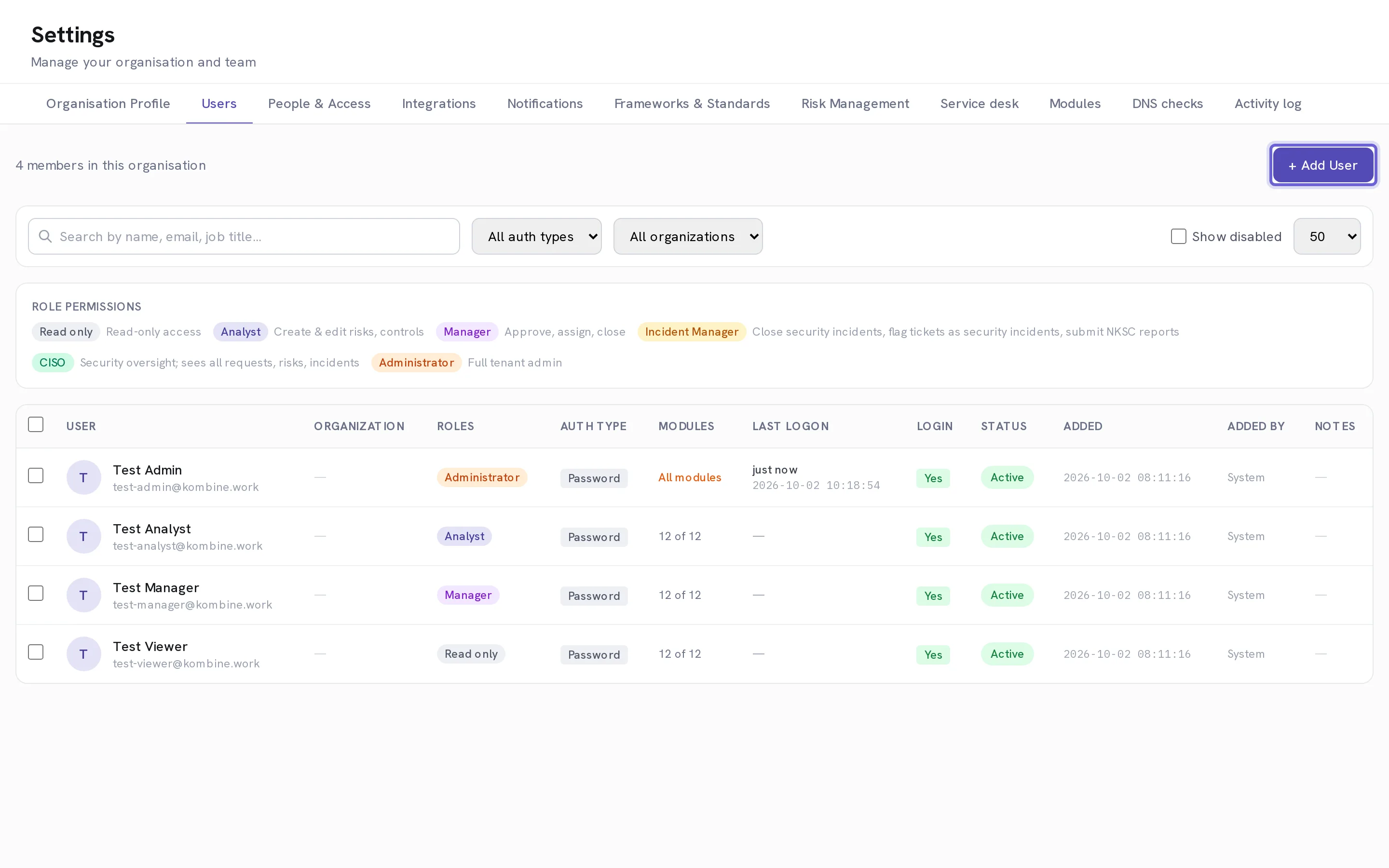
Select + Add User
A panel opens from the right. Nothing is saved until you finish it.
Enter their work Email address
This is also their sign-in, and where the welcome email goes. It must be unique within your organisation.
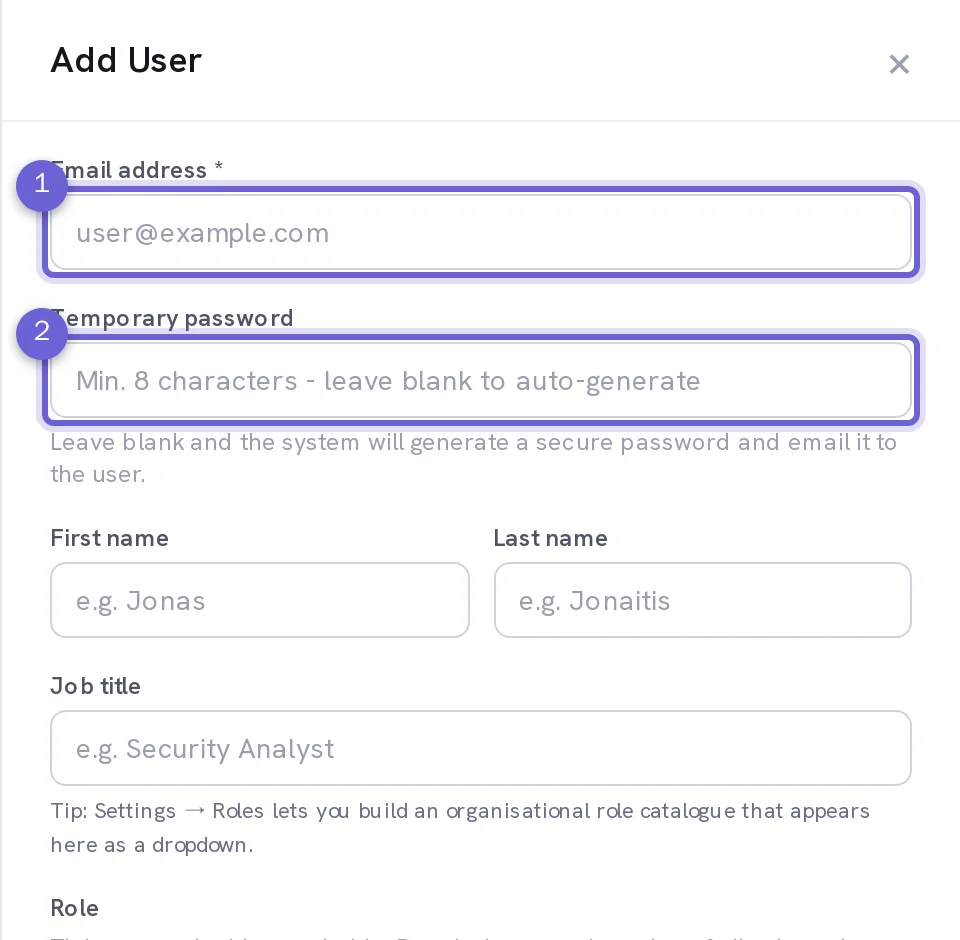
Optional. Leave Temporary password blank
Kombine then generates a secure password and emails it with a sign-in link scoped to your workspace. Type one yourself only if you intend to pass it on another way, and it must meet the workspace password policy.
Enter First name, Last name and a Job title
The job title is free text until somebody builds the catalogue under People & Access → Job titles, after which it becomes a dropdown.
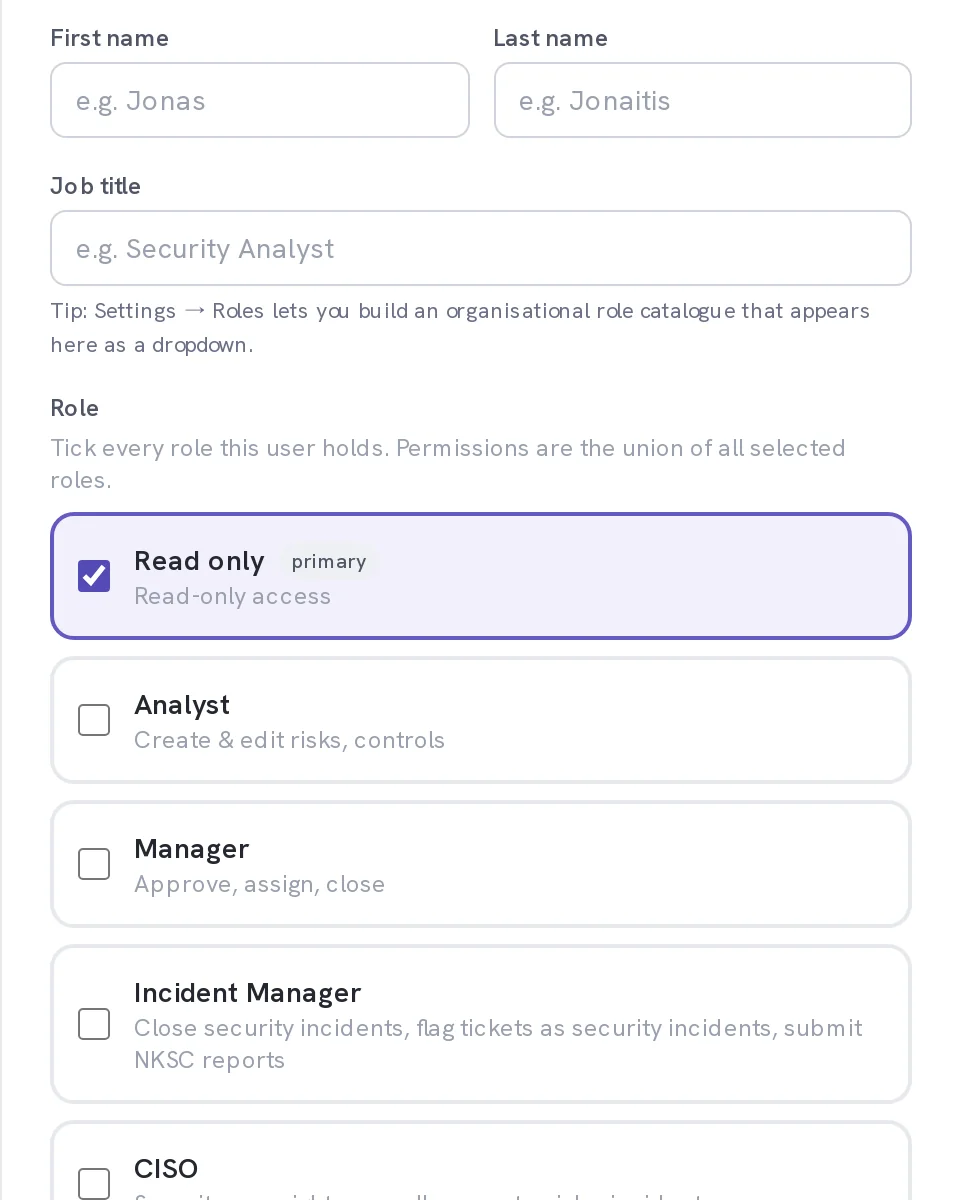
Tick every Role that applies
Roles are additive: permissions are the union of all the roles you tick, and the strongest is tagged *primary*. Read only sees records and changes nothing. Analyst creates and edits risks and controls. Manager approves, assigns and closes. Incident Manager closes security incidents and submits NKSC reports. CISO sees all requests, risks and incidents. Administrator also manages the organisation itself.
Set Login enabled
On, they can sign in and the welcome email goes out. Off, they receive notifications but can never sign in, and no welcome email is sent at all. Use off for auditors, suppliers and shared mailboxes.
Select Add User
The row appears in the list straight away.
Optional. Narrow their access further than the role
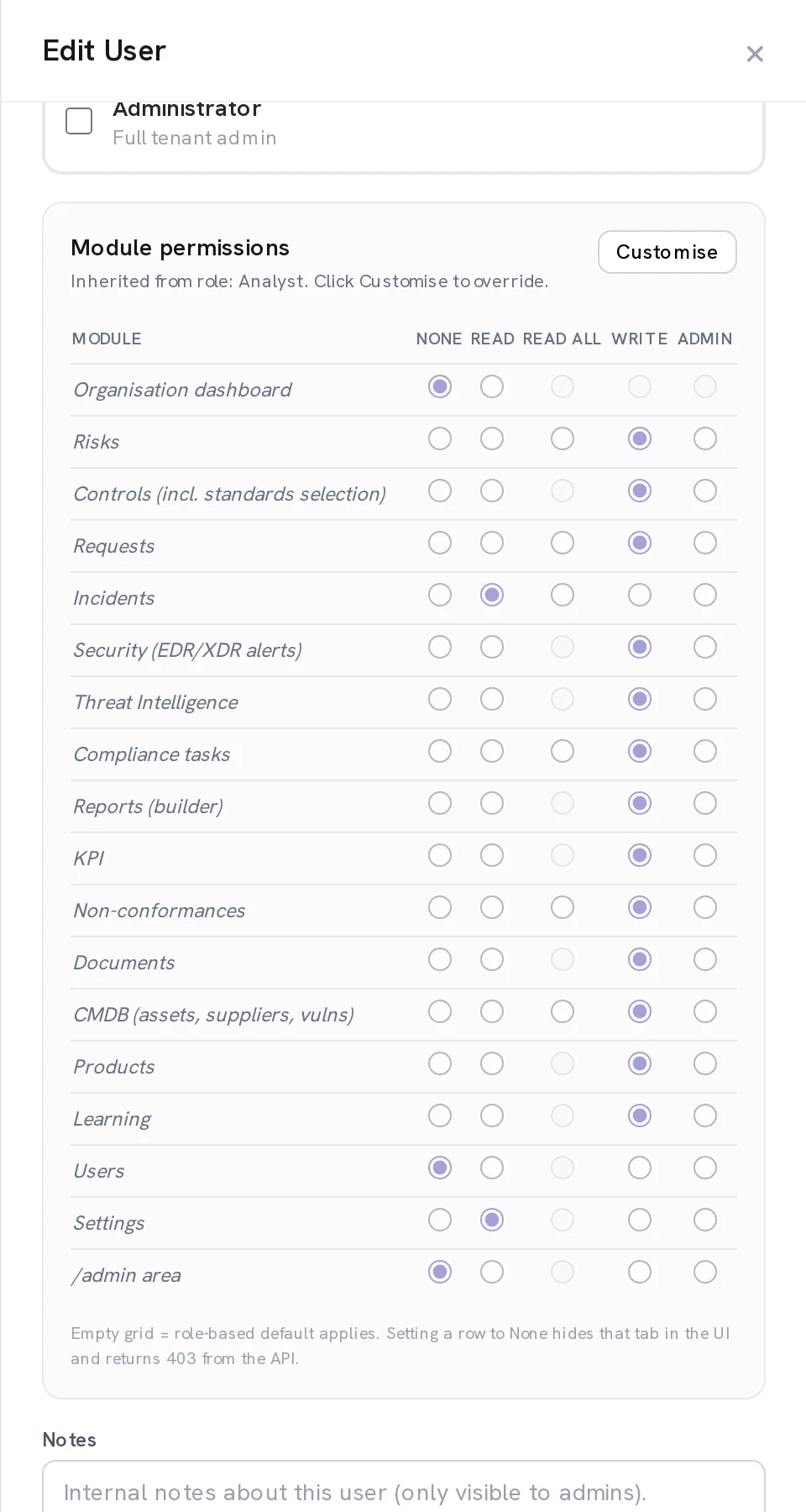
Select the person's row, then under Module permissions select Customise. Each of the eighteen modules can be set to None, Read, Read all, Write or Admin. Leave the grid empty and the role's own default applies. Setting a row to None hides that tab in the interface and returns 403 from the API, so it is a real boundary rather than a cosmetic one.
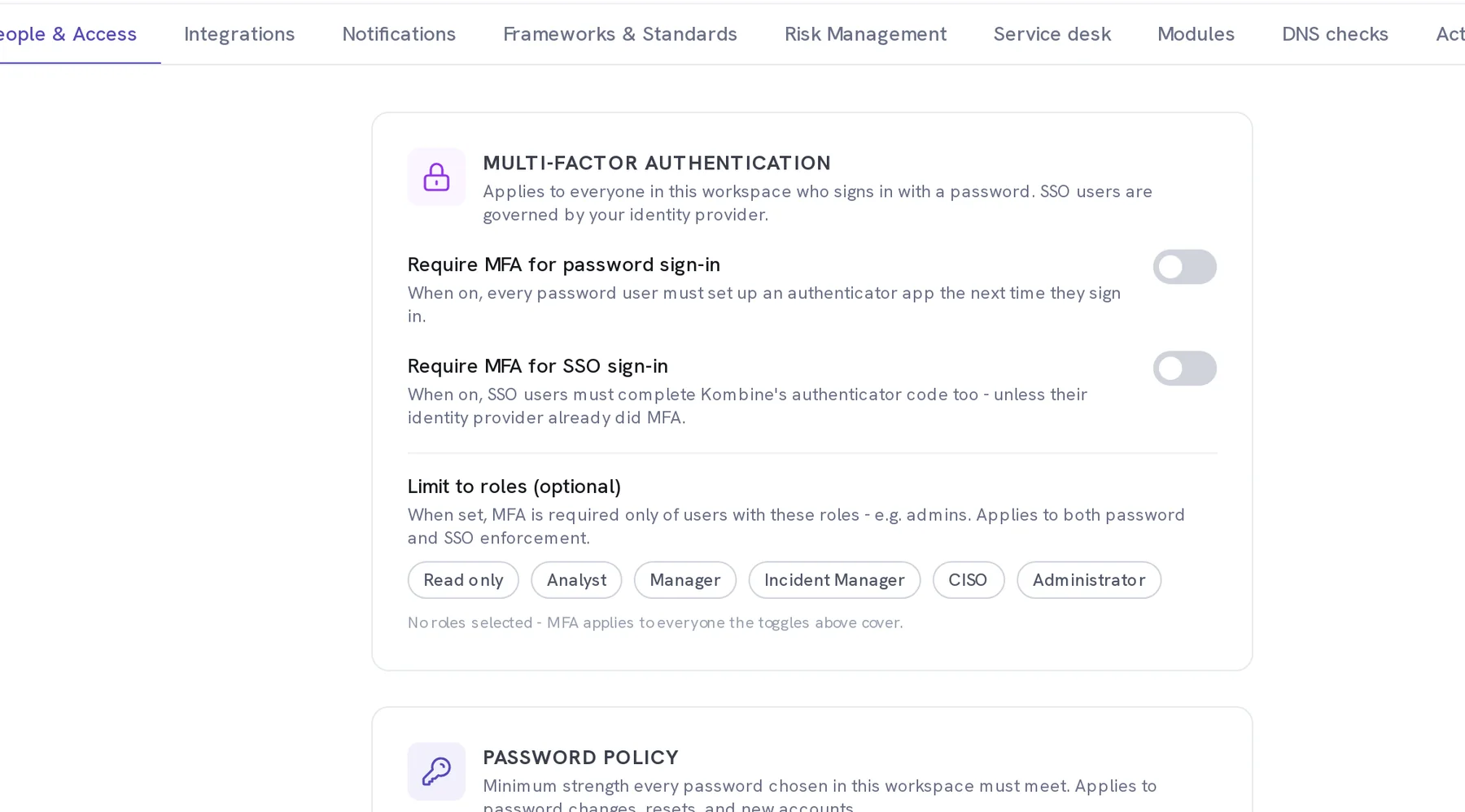
Require MFA for everyone, or just for admins
Go to People & Access → Sign-in & MFA. Turn on Require MFA for password sign-in and every password user enrols an authenticator at their next sign-in. Require MFA for SSO sign-in adds Kombine's own code on top of your identity provider, and is skipped automatically when the provider already did MFA. Limit to roles narrows either toggle to, for example, administrators only.
Set the password policy
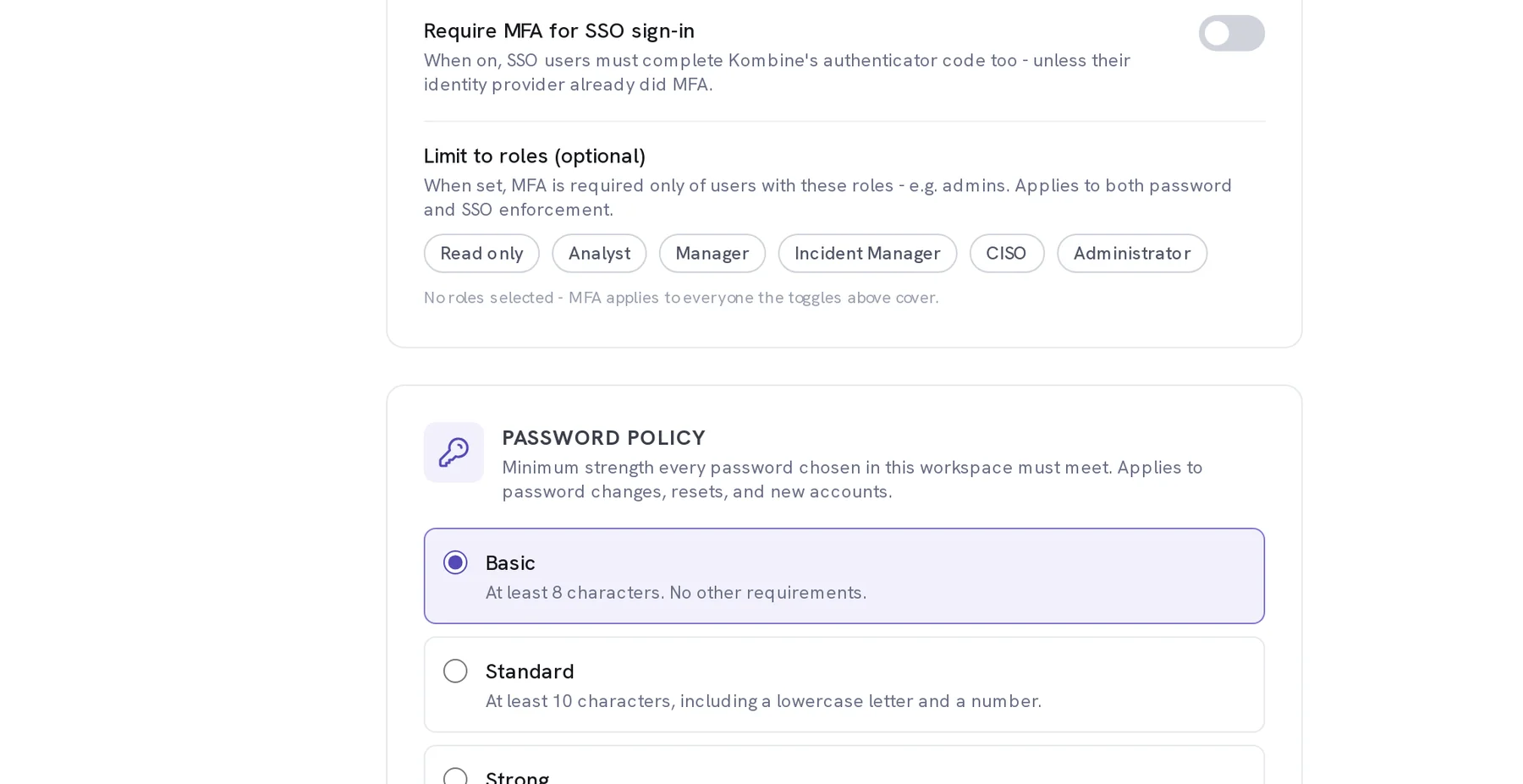
On the same page, choose Basic (8 characters), Standard (10, with a lowercase letter and a number) or Strong (12, with mixed case, a number and a symbol). Existing passwords keep working until they are next changed, and SSO users are unaffected.
When it worked
The person appears in Settings → Users with Status Active and Auth type Password. If you turned Login enabled off, the row shows them as a notification recipient instead.
If it does not work
- They never received the welcome email.
- The send is best effort and does not block the account being created, so the user exists either way. Open their row, use Reset password, and pass the generated password on yourself.
- There is no Reset password on their row.
- That account signs in through your identity provider, so its password belongs there, not to Kombine. You also cannot reset your own password from this screen.
- A module is missing from somebody's navigation.
- Their module grid has that row set to None, which hides the tab. Open the row, select Customise, and set it to Read or above, or empty the grid to fall back to the role default.
- The gear icon is not in their top bar.
- Settings is admin-only. Give them the Administrator role, or make the change for them.
Auditors and suppliers are users too. **Read only** with **Login enabled** turned off gives them the notifications without an account that can sign in, and costs nothing extra.