Instructions
Put a task on the compliance calendar
This guide shows you how to build the calendar from the standard's own template list, and how to add the tasks that are yours alone.
Before you start
- You need Write on the Compliance module, which means Analyst or above.
- Switch your standards on first, under Settings → Frameworks & Standards. The template list is built from the standards that are active, so an empty catalogue usually means none are.
- Decide who is accountable before you schedule anything. A recurring task with no owner is a recurring reminder nobody reads.
Open Tasks
Tasks are grouped by what they need from you now: Overdue, Due Soon, Upcoming and Completed. List and Timeline are two views of the same calendar. The timeline lays this year and the two after it out as bars, which is the view that shows you a month with four reviews in it.
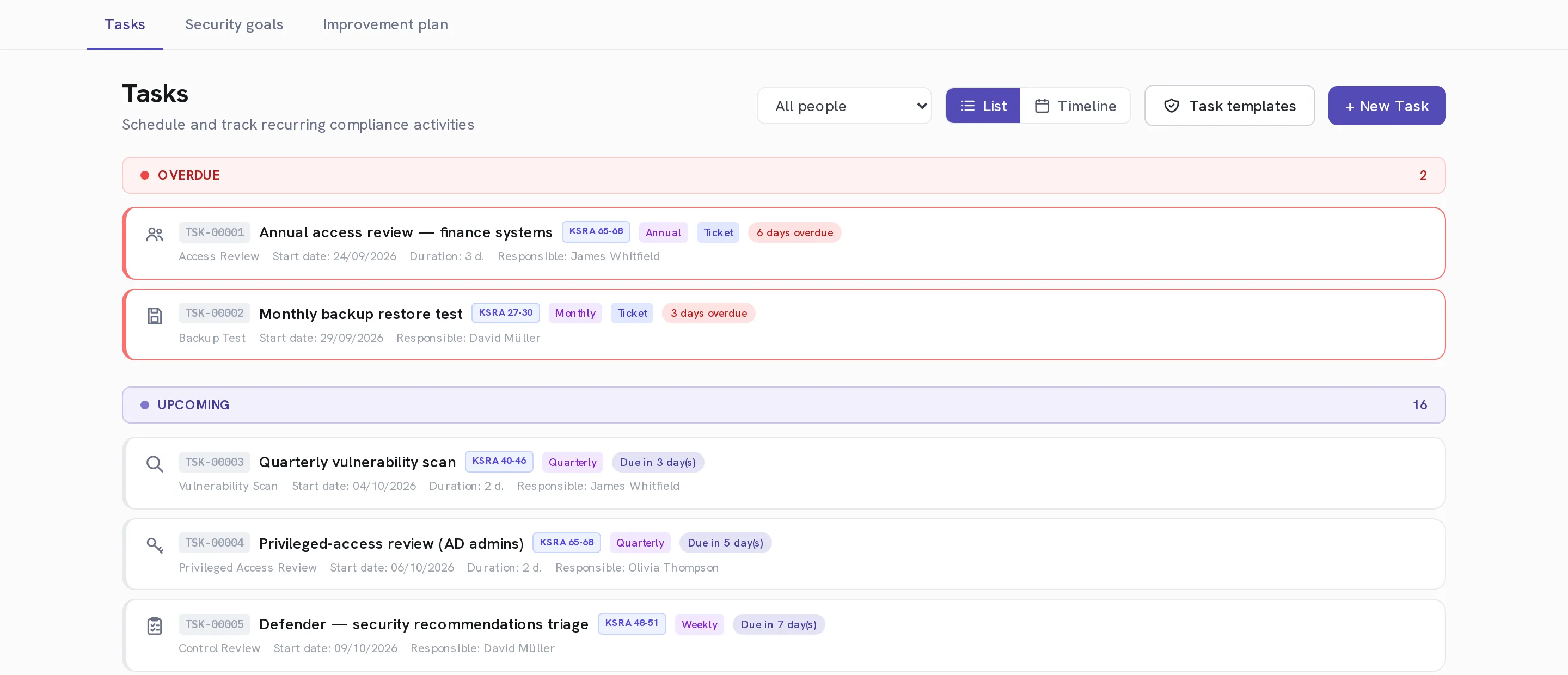
Select Task templates first
This is the step most people skip. Kombine ships the recurring tasks each active standard expects, grouped by standard, and ticking one puts it on your calendar already carrying its clause references. It is faster than typing them and it is how you demonstrate coverage rather than claim it.
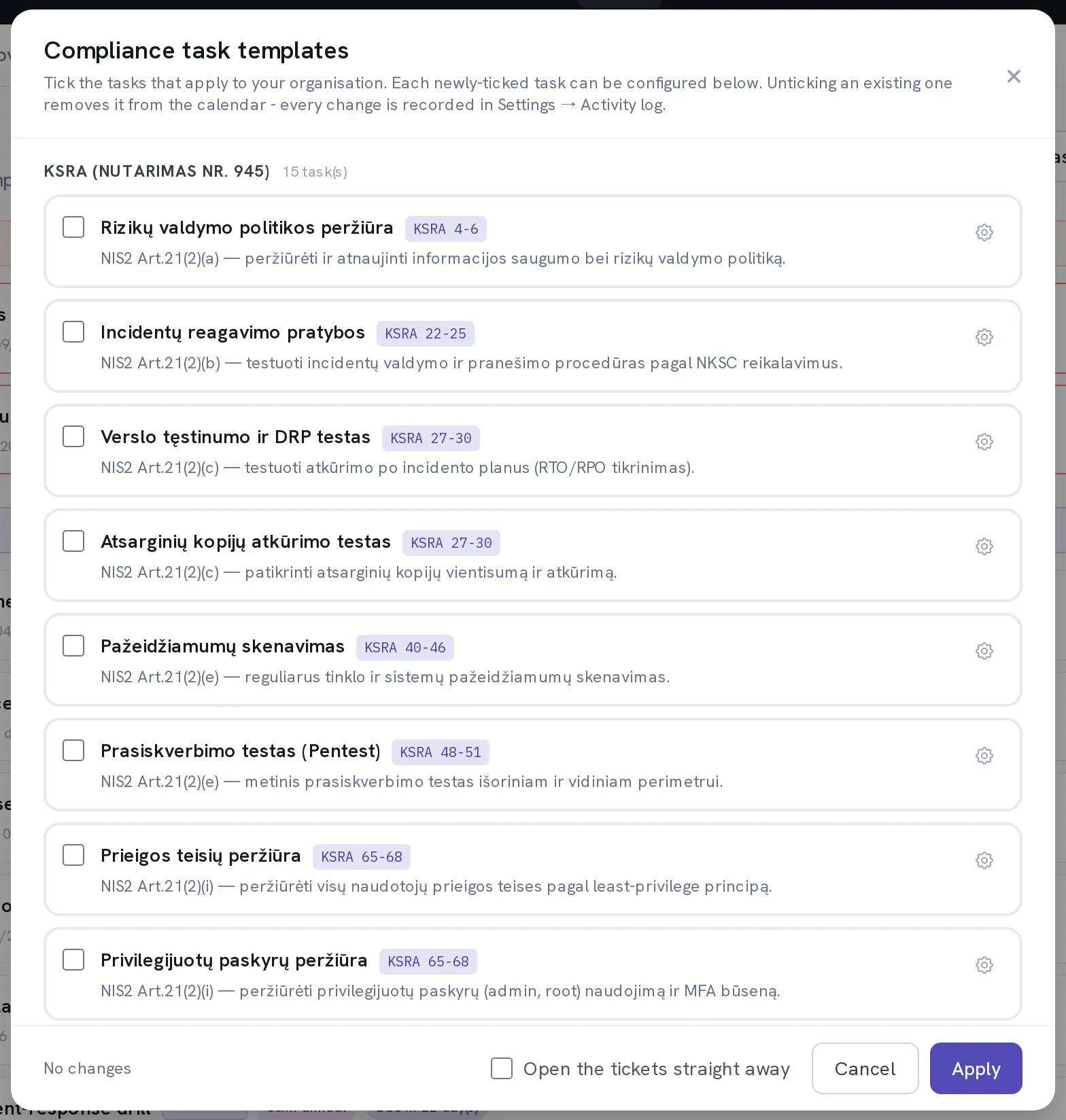
Tick what applies and configure each one
A newly ticked task expands so you can set its Due date, Start date, Duration (days), Owner and Recurrence before it exists. Unticking a task that is already on the calendar removes it, and every change is recorded in Settings → Activity log.
Select Apply
The summary line above the button tells you exactly what is about to happen, how many tasks will be added and how many removed, before anything changes.
Select + New Task for the work no template covers
A panel opens from the right. This is for the obligations that come from your own policies, your insurer or a customer contract rather than from a standard.
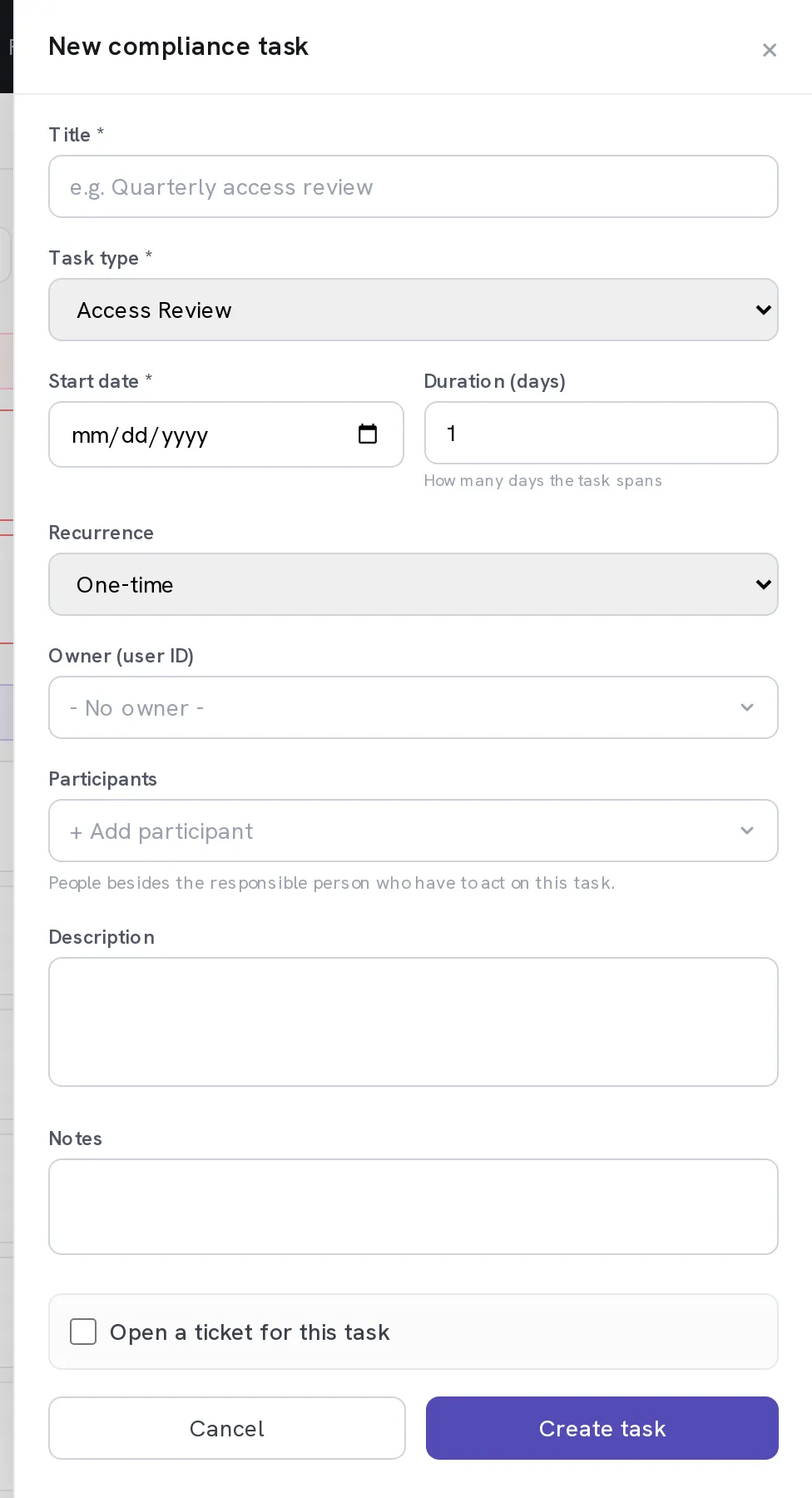
Enter a Title and pick a Task type
The type is the vocabulary an auditor recognises: Access Review, Privileged Access Review, DR Test, Vendor Review, Control Review, Vulnerability Scan, Penetration Test, Backup Test, Policy Review, Training, Incident Drill, Audit and Other. The periodic risk review is a type too, but it is configured under Settings → Risk management rather than picked here. The type is also how the calendar groups and reports.
Set Start date, Duration (days) and Recurrence
Duration is how many days the task spans, not how long it takes. A two-week access review is a bar on the timeline rather than a point. Recurrence offers One-time, Weekly, Monthly, Every 2 months, Quarterly, Semi-annual, Annual, Every 2 years and Every 3 years, and the next occurrence is created when this one closes.
Set the Owner, then add Participants
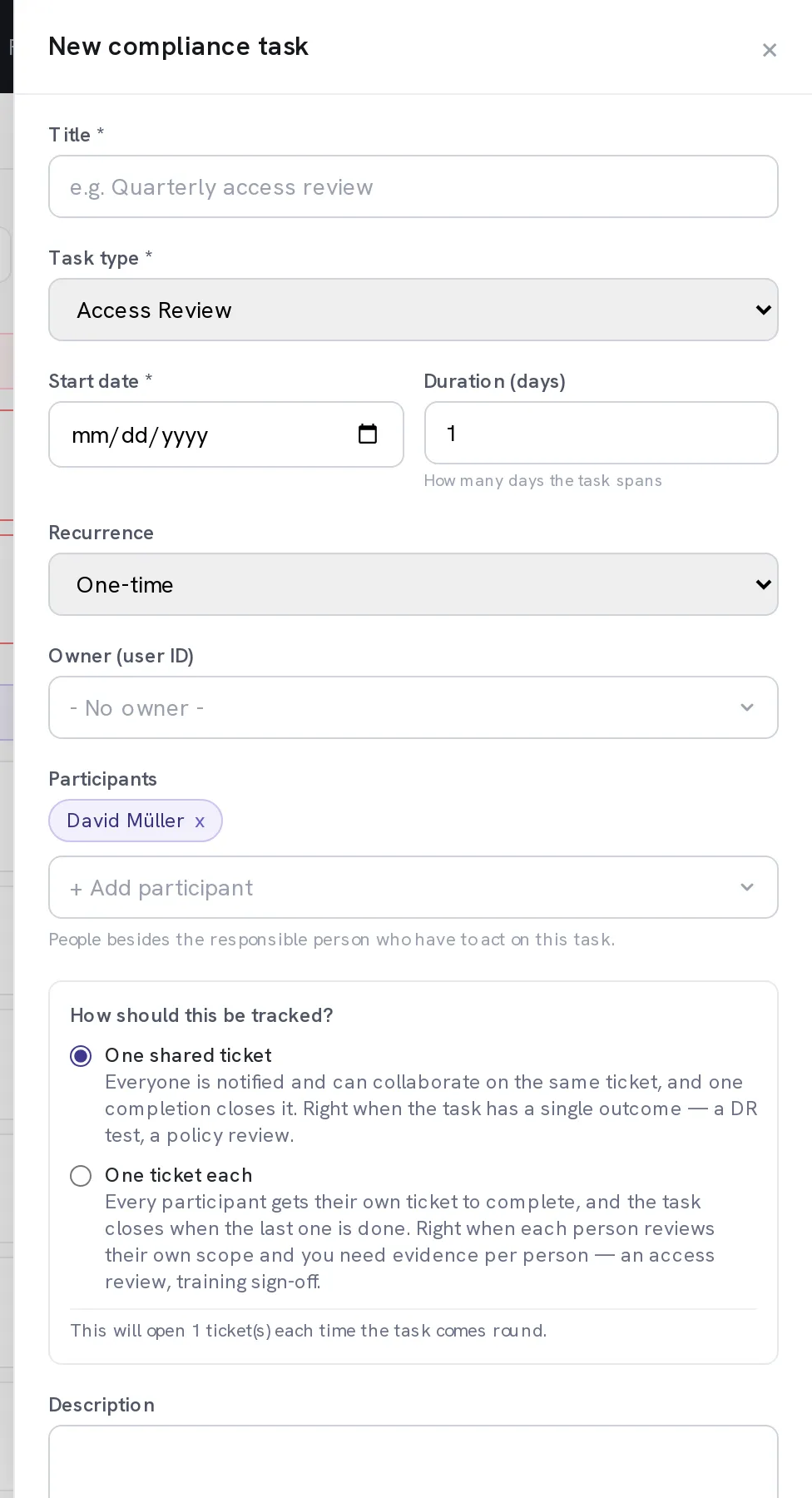
The owner stays accountable; participants are the people who have to act. Adding one changes the form: a new block appears asking how the task should be tracked.
Choose One shared ticket or One ticket each
One shared ticket notifies everyone, lets them collaborate, and one completion closes it. Right for a task with a single outcome, like a DR test. One ticket each gives every participant their own ticket and closes the task when the last one is done. Right when you need evidence per person, like an access review or training sign-off. The line underneath tells you how many tickets each round will open.
Optional. Decide whether to Open a ticket for this task
Tick it and the task raises a request on the service desk, either immediately, one or two days before it starts, or on a date you pick. That gives the work an assignee and an SLA instead of a calendar entry nobody opens.
Select Create task, and Mark Complete when it is done
Completing a recurring task closes this occurrence and schedules the next one from the recurrence you set.
When it worked
The task appears under Upcoming with its owner, its start date and its recurrence, and it moves into Overdue by itself if it is not completed in time.
If it does not work
- The template catalogue is empty.
- No standards are active. Switch them on under Settings → Frameworks & Standards and reopen the catalogue.
- A task says it is managed automatically and will not let you edit it.
- It is driven by a setting rather than by hand. The periodic risk review is configured under Settings → Risk management. The link in the message takes you there.
- The tracking question never appeared.
- It only appears once there is at least one participant, because with nobody on the task the question has no consequence.
- Everyone got a ticket when you wanted one.
- The task is set to One ticket each. Open it, change it to One shared ticket, and the next occurrence opens a single ticket.
The timeline view earns its place at planning time. Four annual reviews that each looked reasonable in isolation usually turn out to land in the same fortnight, and you can only see that as bars.