Instructions
Connect an integration
This guide shows you how to connect a system Kombine reads from, check what the first pull really returned, and set how often it runs.
Before you start
- You need the Administrator role. Integrations sit behind the gear in the top bar.
- Somebody with admin rights in the system you are connecting has to create the credentials. Kombine never asks for a person's own password.
- The integrations in this guide are read-only: Kombine pulls on a schedule you set and writes nothing back. Two entries in the catalogue are not pulls and do send data out, both deliberately. NKSC incident reporting files your report with the regulator, and SAST scanning starts a scan in your code host.
In the top bar select the gear, then select Integrations
The rail down the left is the catalogue, grouped by what each provider brings: Identity & Access, Endpoint & MDM, Cloud, Code, Vulnerability & SIEM, Assets & Discovery, Kombine, Compliance and Platform. The dot beside a name is its state, and the pill at the top right of the panel reads Not configured until that provider has credentials.
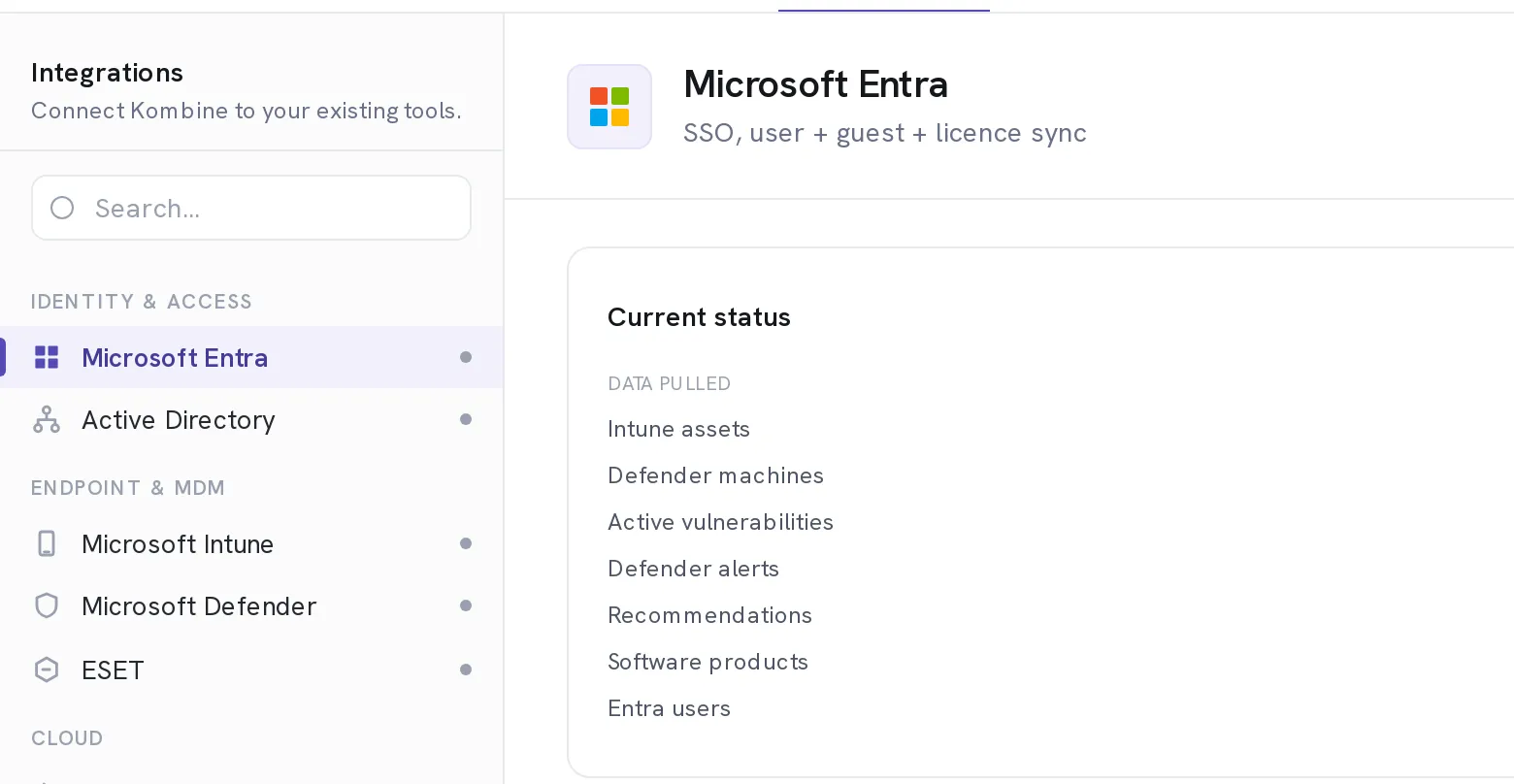
Select the provider you want
Microsoft Entra is the usual first one. It carries single sign-on, user and guest sync, and the credentials that Microsoft Intune, Microsoft Defender and Microsoft Azure then reuse. Connect it once and three more integrations stop asking for secrets.
Create a read-only credential in that system
Each panel names exactly what it needs and nothing more. Entra wants an app registration with a client secret. Amazon AWS wants an IAM access key with a read-only policy. Microsoft Azure wants the Reader role granted on the subscription to the app you already registered for SSO, plus Security Reader if you want the Defender for Cloud alerts. Grant the least that works: the permissions are listed one by one, so you can grant them one by one.
Paste the credentials and save
For the Microsoft family that means a Client Tenant ID (Directory ID), an Application (Client) ID and a Client Secret (Value) on the SSO tab, which every Microsoft integration then reads. Secrets are encrypted at rest and never returned by the API, so the field is blank when you come back. That is not a lost secret.
Select Sync to run the first pull
It runs immediately instead of waiting for the schedule, so you find out now whether the credential works.
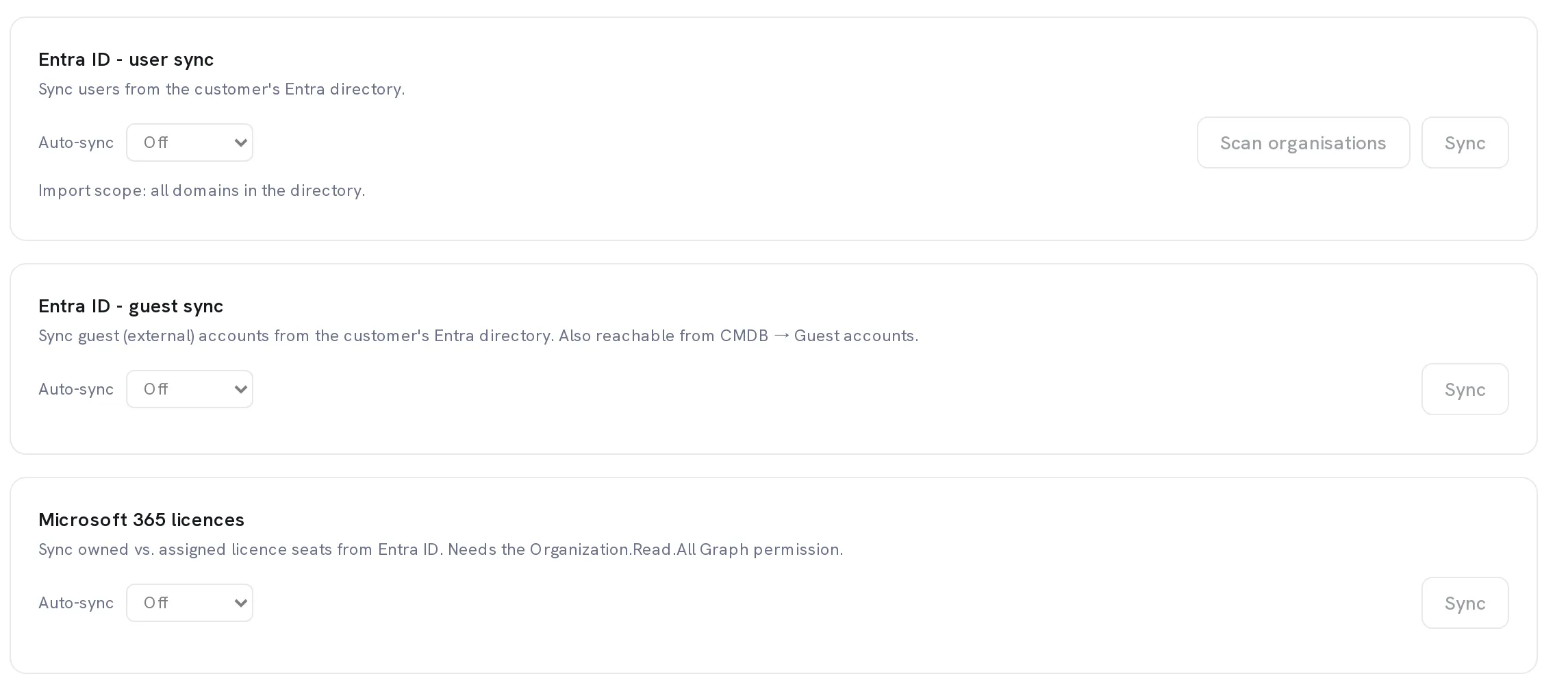
Read Current status before you trust it
Data pulled counts what the last run actually brought in, line by line. Inferred permissions is the honest half: a tick means Kombine has seen data that only that permission can return, a grey circle means it has not. A connection that saves cleanly and returns nothing but zeros is a permission nobody granted, and this panel names which one.
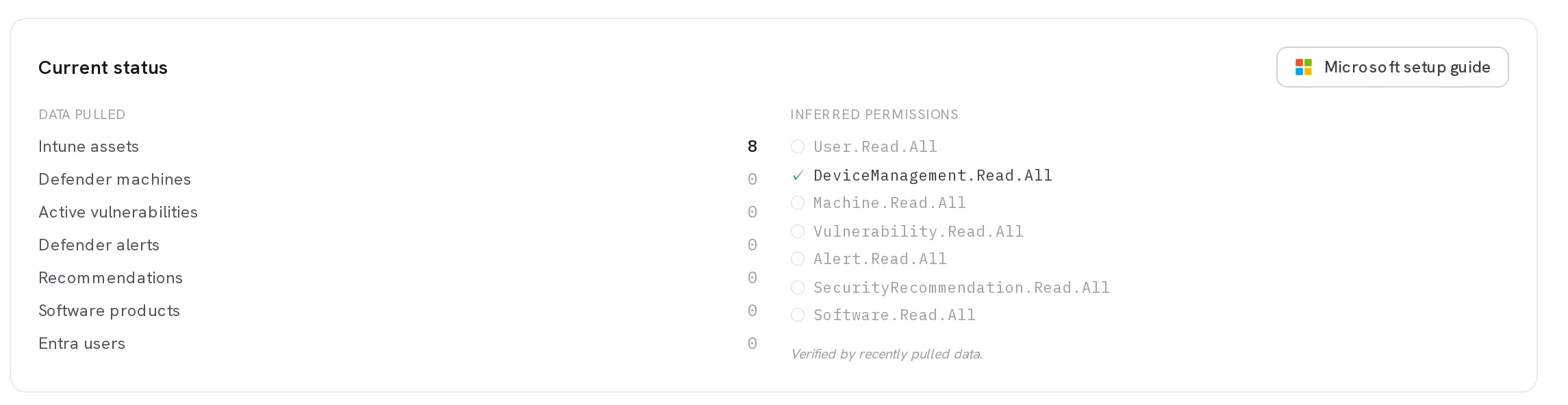
Set Auto-sync
The dropdown beside each Sync button: Off, Every 6h, Every 12h, Every 24h, Every 48h, Weekly, or Daily at… for a fixed time in your business-hours timezone. Six hours is the floor for most providers; fast-moving security feeds are allowed tighter. The default is Off, and an integration left off never pulls again after the sync you just ran by hand.
Check where the data landed
Devices and cloud resources appear in CMDB, findings under Risks → Vulnerabilities, alerts under Security. Every record carries the source it came from and the moment it arrived. The decisions you make stay yours: owner, criticality, classification and scope survive every pull. Identity does not. A cloud or directory sync rewrites an asset's Name from the source each time, so rename one of those in the source system.
Optional. Add a collector for anything that does not face the internet
An on-premises Active Directory, a local OpenVAS, a network with printers and switches on it: these need a collector, which is the same agent given a set of jobs. Collectors sits in the Kombine group of the rail, under Settings → Integrations. Register one, choose its Platform and Jobs to run, and copy the token straight away. It is not shown again.
When it worked
The provider's pill reads Connected, Data pulled shows non-zero counts against the sources you granted, and Auto-sync shows when the next run is due.
If it does not work
- It saved without an error, but every count under Data pulled is zero.
- Look at Inferred permissions in the same panel. A grey circle is a permission that has never returned data; grant it in the provider and sync again. Azure role assignments can take a minute to propagate, so test again rather than assuming it failed.
- A Microsoft panel will not let you sync.
- Those integrations read the Client Tenant ID (Directory ID) and Application (Client) ID from Settings → SSO. Fill those in and save there first; the panel links straight to it.
- The same machine arrived twice under slightly different names.
- Two systems named it differently. CMDB → Duplicates proposes merges rather than guessing, and a merge keeps the decisions a person made about the record.
- There is no gear icon in your top bar.
- Settings is admin-only. Ask an administrator to connect it, or to give you the Administrator role.
Nothing is connected by default, and nothing leaves your tenant for a provider you have not configured. An integration you never switch on pulls nothing and sends nothing.