Instructions
Record a non-conformance
This guide shows you how to log a finding, work it, and close it with a record an auditor can follow.
Before you start
- You need Write on the Non-conformances module, which means Analyst or above.
- Know which standard the finding is against. You can tag it later, but a finding with no standard will not appear in that standard's evidence pack.
- A non-conformance is an audit finding, not a technical drift. A setting that moved on its own belongs in misconfigurations; a rule somebody did not follow belongs here.
Open Non-Conformances
The register shows everything open, who owns it, what it is against and how long it has been there. The filters above the table narrow by type, status, source, standard, owner and due date, and Show closed brings back the ones already dealt with.
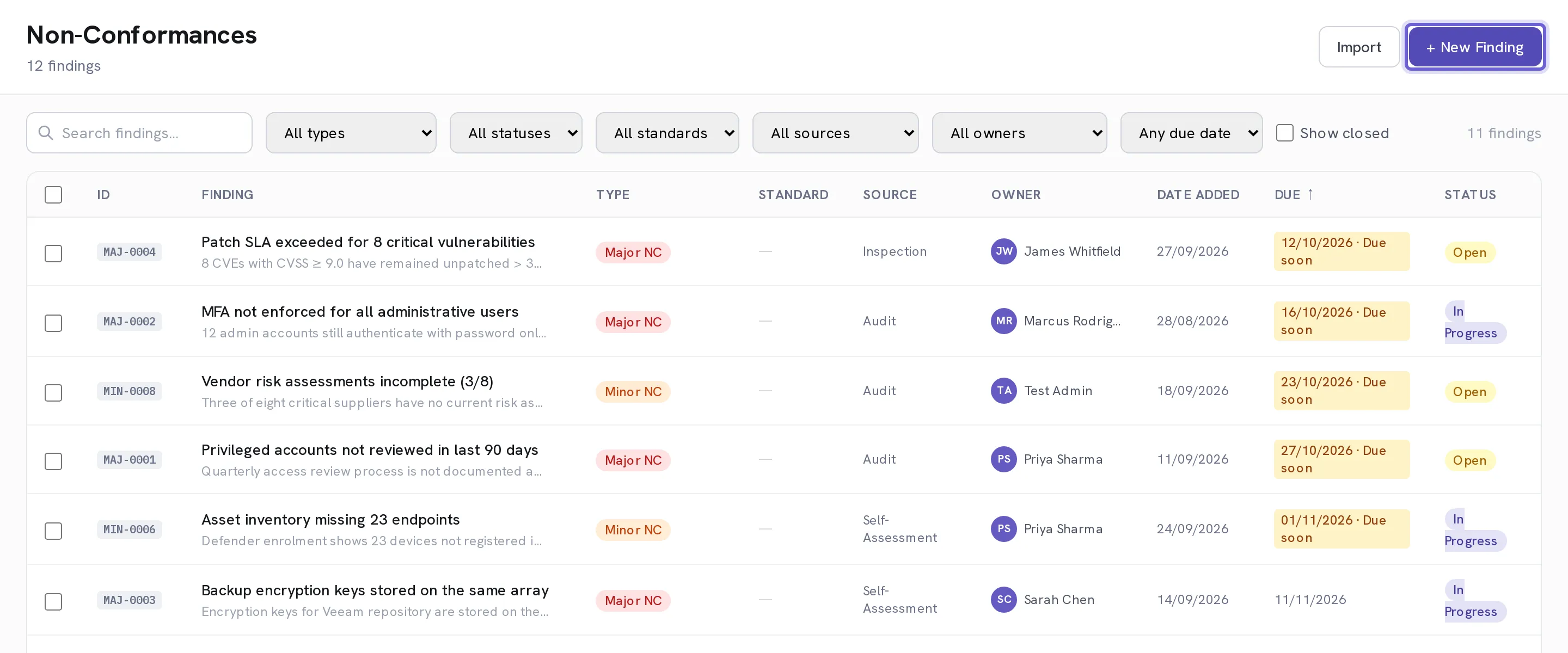
Select + New Finding
A modal opens. Nothing is saved until you finish it.
Choose the Type
Major NC is a systemic failure or a missing control. Minor NC is a lapse in something that otherwise works. OFI is an opportunity for improvement, and Recommendation is advice. The last two do not count against you, but they are worth recording because they are what the next audit asks whether you acted on.
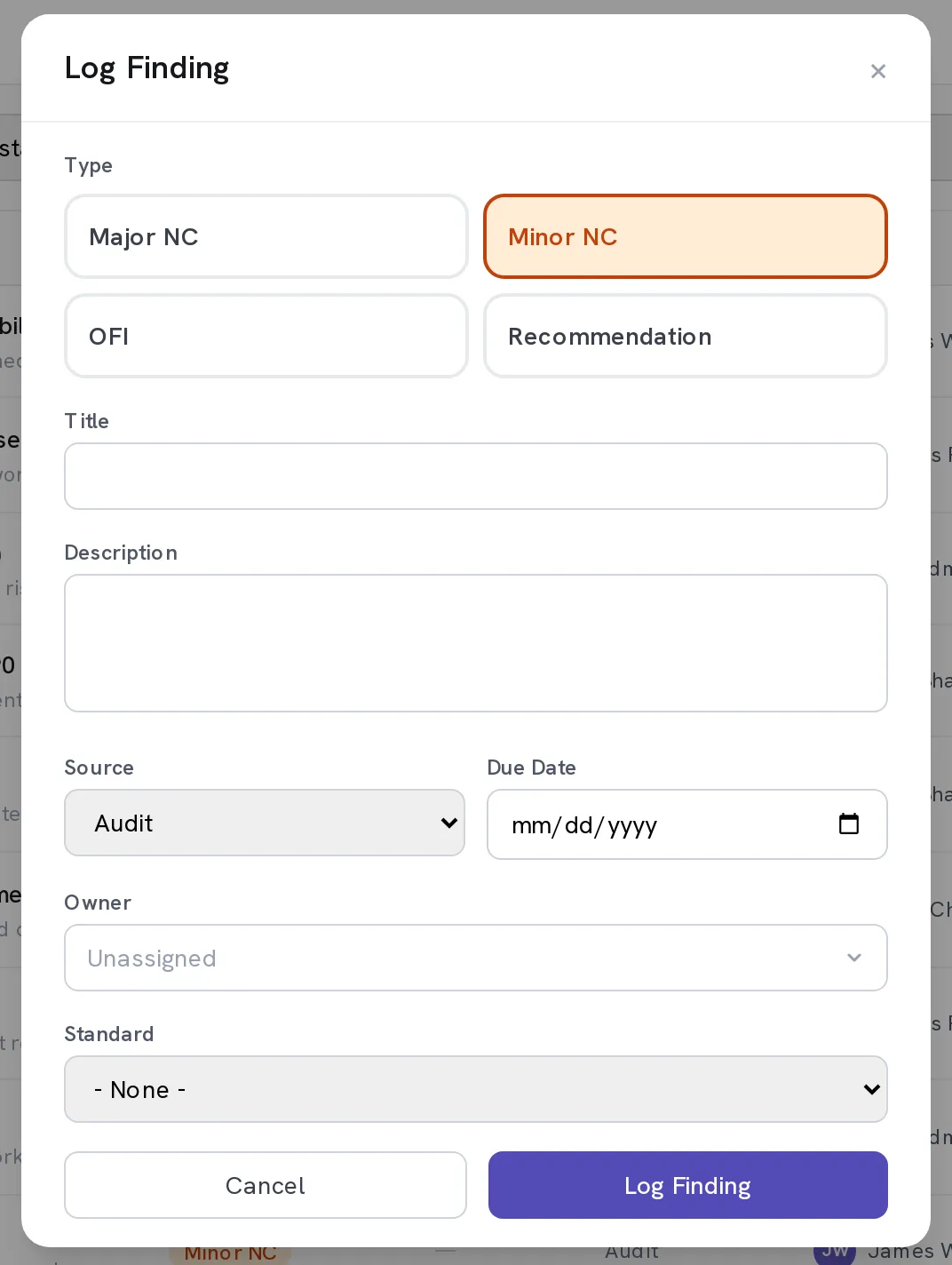
Write a Title that names what failed
"Firewall rule review not performed in Q3" is a finding. "Firewall" is a filing mistake you will not understand in six months.
Set the Source
Audit, Self-Assessment, Inspection, Review or Other. This is how you later answer "what did the external audit raise" without reading every record.
Set a Due Date and an Owner
The due date starts the clock that drives the Due soon and Overdue filters and the reminder emails. An unassigned finding is nobody's work; the owner is searched by name or email.
Tag the Standard
The dropdown separates Active standards, the ones switched on for your organisation under Settings → Frameworks & Standards, from Other. Tagging is what makes the finding show up in that standard's auditor export and against the control it belongs to.
Select Log Finding
The row appears in the register straight away, with Status Open.
Work it from the detail panel
Select the row. The panel on the right is where the finding is actually worked: move Status through In Progress, write what you did in Resolution / Corrective Action, and set Status to Closed when the corrective action is done and evidenced. Accepted is for a finding you have consciously decided to live with.
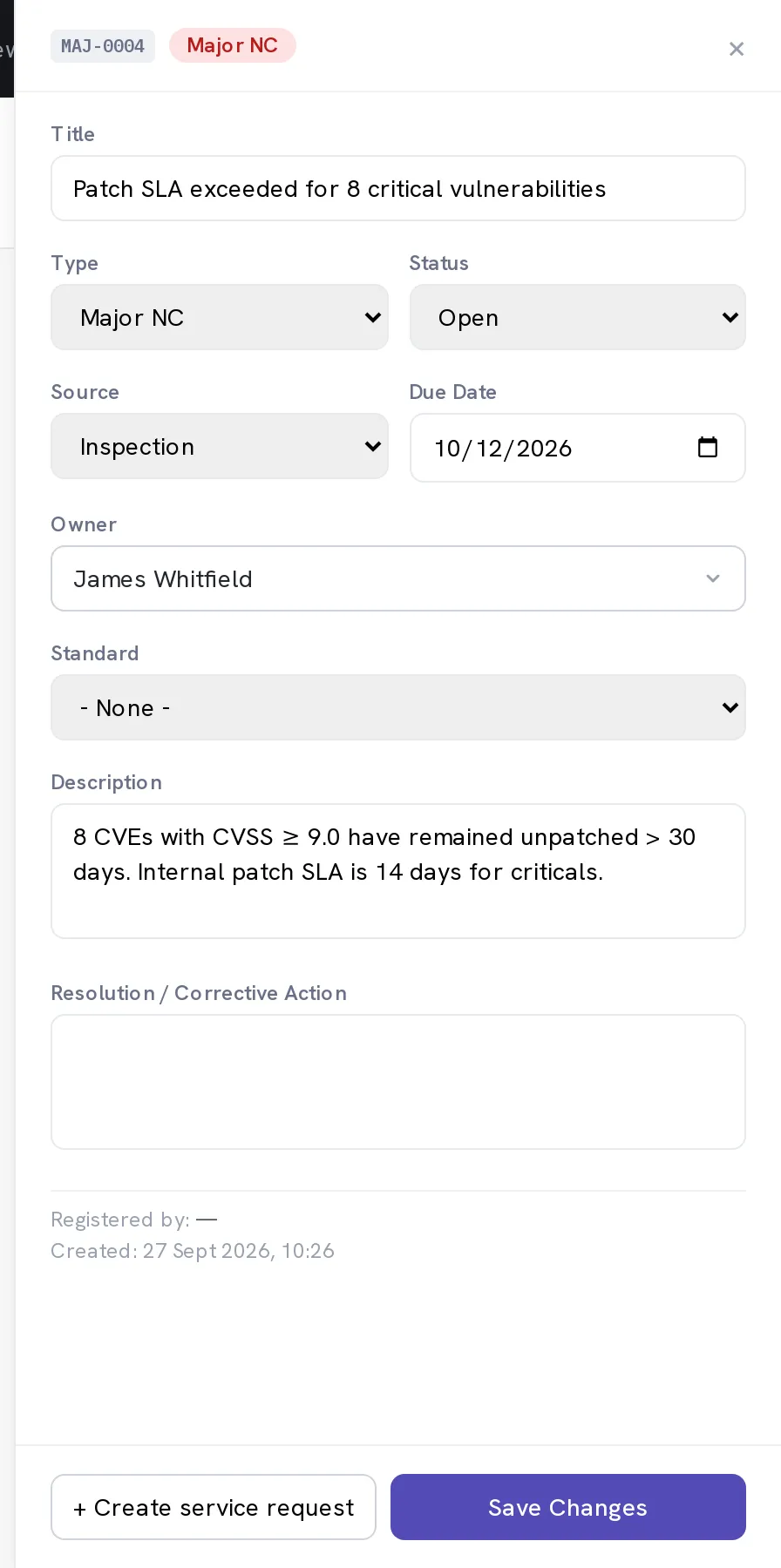
Optional. Turn it into work with Create service request
If the corrective action is a job rather than a sentence, this opens a ticket linked to the finding, with its own assignee and SLA. The finding then tracks the ticket instead of tracking a promise.
Optional. Import a whole audit instead of typing it
Import takes a CSV or pasted rows. The first row must be column headers; only title is required, and types, statuses and sources fall back to sensible defaults. Owners can be assigned afterwards with the bulk action.
When it worked
The finding is in the register with an owner, a due date and a standard, and it appears against that standard's controls and in the auditor export.
If it does not work
- The finding does not appear in the auditor export.
- It has no Standard, or it is tagged to a standard that is not active for your organisation. Open the row and pick one from Active standards.
- You closed it but it is still counted as active.
- Accepted and Closed are different states. Accepted means you decided to live with it, and it stays visible on purpose.
- The import found no rows.
- The first row has to be the column headers, and one of them has to be title. Comma, semicolon and tab separators are all accepted.
- You cannot see Non-Conformances in the top bar.
- Your role does not reach the module, or an administrator has set it to None in your module permissions. Ask them to check Settings → Users.
A finding with a resolution and a date is evidence. A finding that was quietly closed is a question at the next audit, so write the corrective action even when it was obvious.