Instructions
Score a control and evidence it
This guide shows you how to assess a control, mark the ones that do not apply, and leave behind something an auditor can check.
Before you start
- You need Write on the Controls module, which means Analyst or above.
- Your organisation has to be classified as an Essential entity or an Important entity in the organisation profile before the KSRA controls will load. The two classifications have different control sets.
- Switch the standards you are assessed against on under Settings → Frameworks & Standards. Each one gets its own page.
- Have the evidence to hand. A score with nothing behind it is the thing an audit removes first.
In the top bar select Frameworks, then your standard under Active frameworks
The dropdown lists only the standards you switched on, as KSRA, DORA, ISO 27001 and so on, each with its own page. KSRA is the Lithuanian implementation of NIS2 and the one most entities here are audited against; ISO/IEC 27001, DORA, CRA, UN R155, UN R156, Part-IS, the LITGRID and ESO network rules and the EE 73³ declaration each have their own page. The KSRA control titles and guidance are in Lithuanian in both languages, because that is the wording the regulator uses.
Read the summary before you start scoring
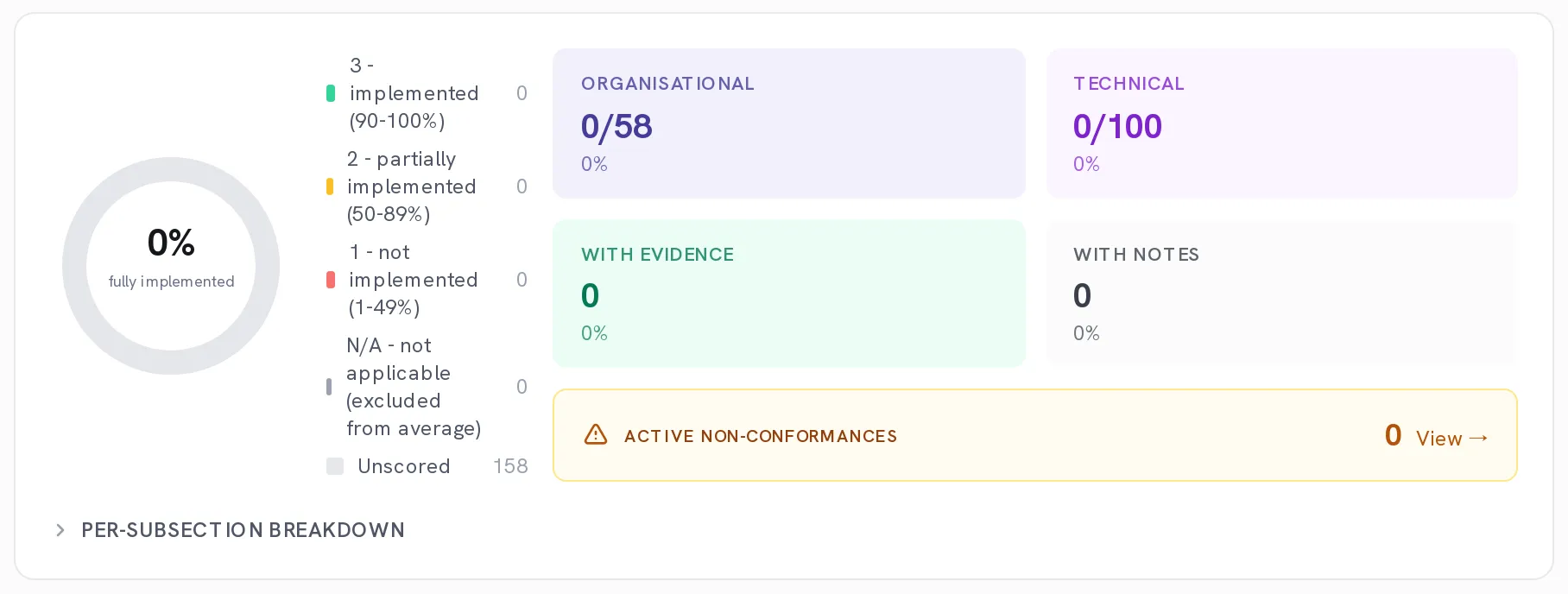
The panel at the top counts where you are: the donut is the share fully implemented, Organisational and Technical track the two halves separately, and Unscored is the honest number: how many requirements nobody has looked at yet. Active non-conformances links straight to the findings raised against this standard.
Find the requirement you are assessing
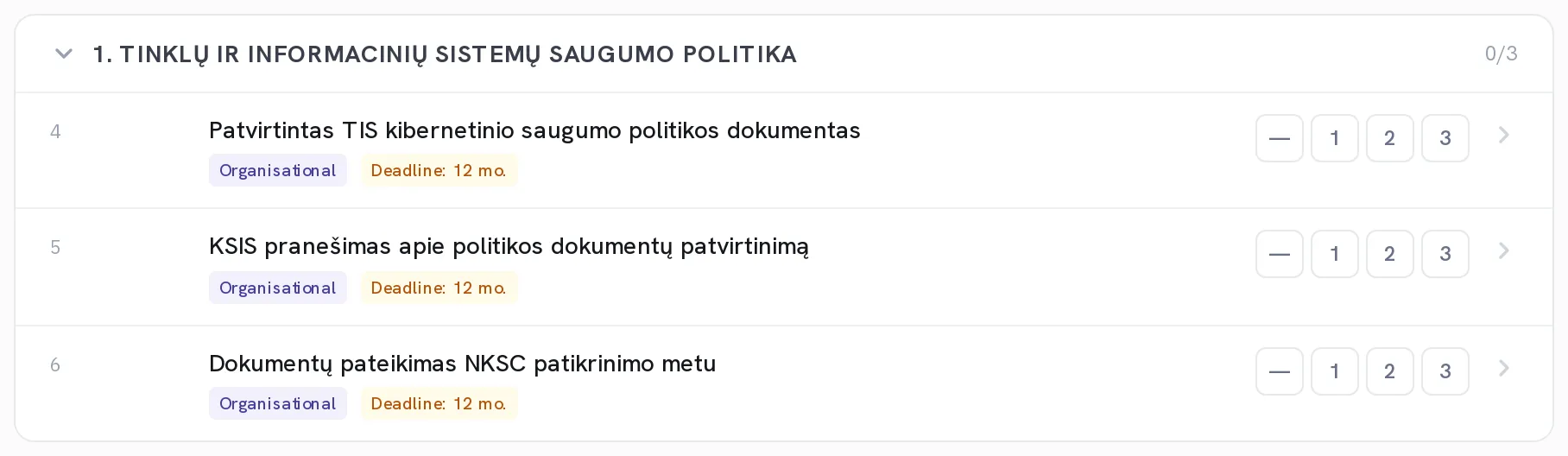
Requirements are grouped by section, each section showing how many of its controls are fully implemented. Search by clause, title, or text… filters the whole page to the matches and counts them, and Expand all and Collapse all open or close every section at once.
Score it 1, 2 or 3
1 is not implemented (1-49%), 2 is partially implemented (50-89%), 3 is implemented (90-100%). The buttons sit on the right of each row and save immediately. Selecting the score that is already set clears it back to not evaluated.
Use the dash to mark a requirement N/A
The first button in the row is not applicable. It opens a box asking Reason for marking N/A, and the Mark N/A button stays disabled until you have written one. N/A requirements are excluded from the average rather than counted as failures, which is why the reason is not optional.
Open the row and write the Notes
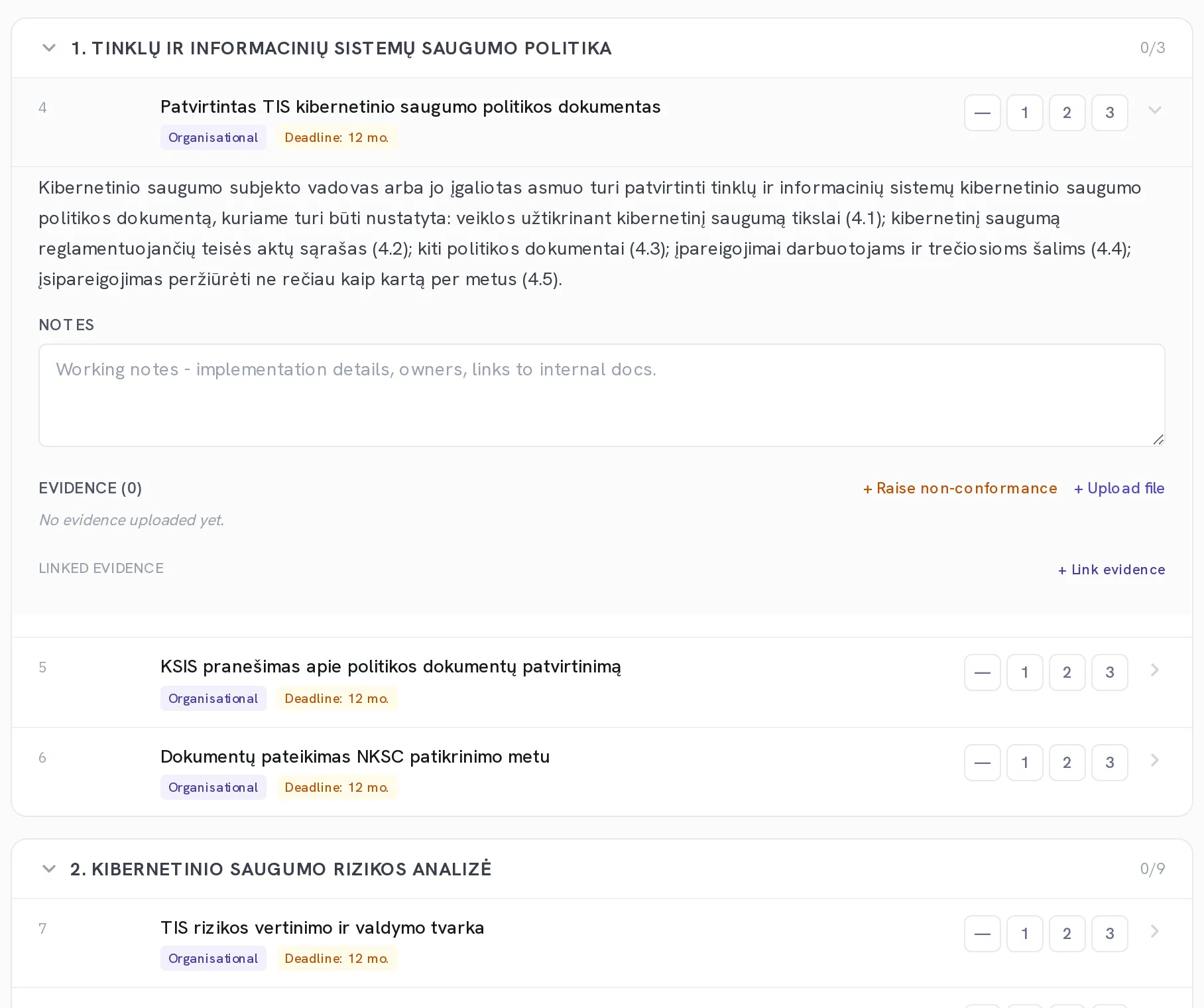
Selecting a requirement expands it to show the regulator's own guidance and a notes box for working detail: who implemented it, where the configuration lives, which internal document covers it. Notes save on their own and the header tells you when.
Attach the proof with Upload file
The Evidence section under each requirement takes the files that back the score: a screenshot, a signed policy, a scan report. The count beside the heading is what the summary panel's With evidence figure is counting.
Use Link evidence for what is already in Kombine
Rather than uploading a copy, point at the record: a specific risk, an asset, the whole Risk Register or CMDB register, a vendor, or a document from the library. The link stays live, so the evidence is whatever the record says today rather than what it said when somebody exported it.
Optional. Raise a non-conformance from the gap
+ Raise non-conformance on a requirement opens a finding already tagged to this standard and this control. That is the honest move on a 1 you are not going to fix this quarter: a scored gap with a finding and an owner reads better than an optimistic 2.
Export the result for the auditor
Export for auditor at the top of the standard's page produces the pack as a ZIP: every requirement, its score, its notes, its evidence files and the non-conformances raised against it.
When it worked
The summary panel shows fewer Unscored requirements and a higher With evidence count, and each requirement you touched carries a score, a note and something behind it.
If it does not work
- The KSRA page says your organisation is not classified.
- Set Essential entity or Important entity in the organisation profile; the link in the message takes you there. The two load different control sets, so the page cannot guess.
- Mark N/A stays greyed out.
- A reason is required. The button enables as soon as there is text in the box.
- The percentage did not move after you scored several controls.
- The donut counts only fully implemented. Scores of 1 and 2 move the organisational and technical bars but not the headline figure, which is deliberate.
- A control changed its own state.
- Continuous control monitoring is reading your synced posture data and flagged drift. That is the feature working: the configuration moved, so the control did.
Score what is true rather than what you intend. An honest **1** with a non-conformance and an owner is a defensible position; an optimistic **3** with nothing behind it is the finding that ends up in the report.