Instructions
Build and schedule a report
This guide shows you how to get a report out of Kombine: the curated ones for inventory questions, and a custom one for everything else.
Before you start
- You need the Reports permission. The curated gallery additionally needs full CMDB read, because those reports cover the whole inventory.
- The custom builder only offers the domains you can read, so what you see in Report on depends on your own module permissions.
- If you are going to schedule it, decide who receives it. Recipients can be Kombine users or plain email addresses.
Open Reports
Two layers. The gallery at the top holds the curated reports over your asset inventory, grouped by Security, Lifecycle, Coverage and Governance. Underneath is the custom builder.
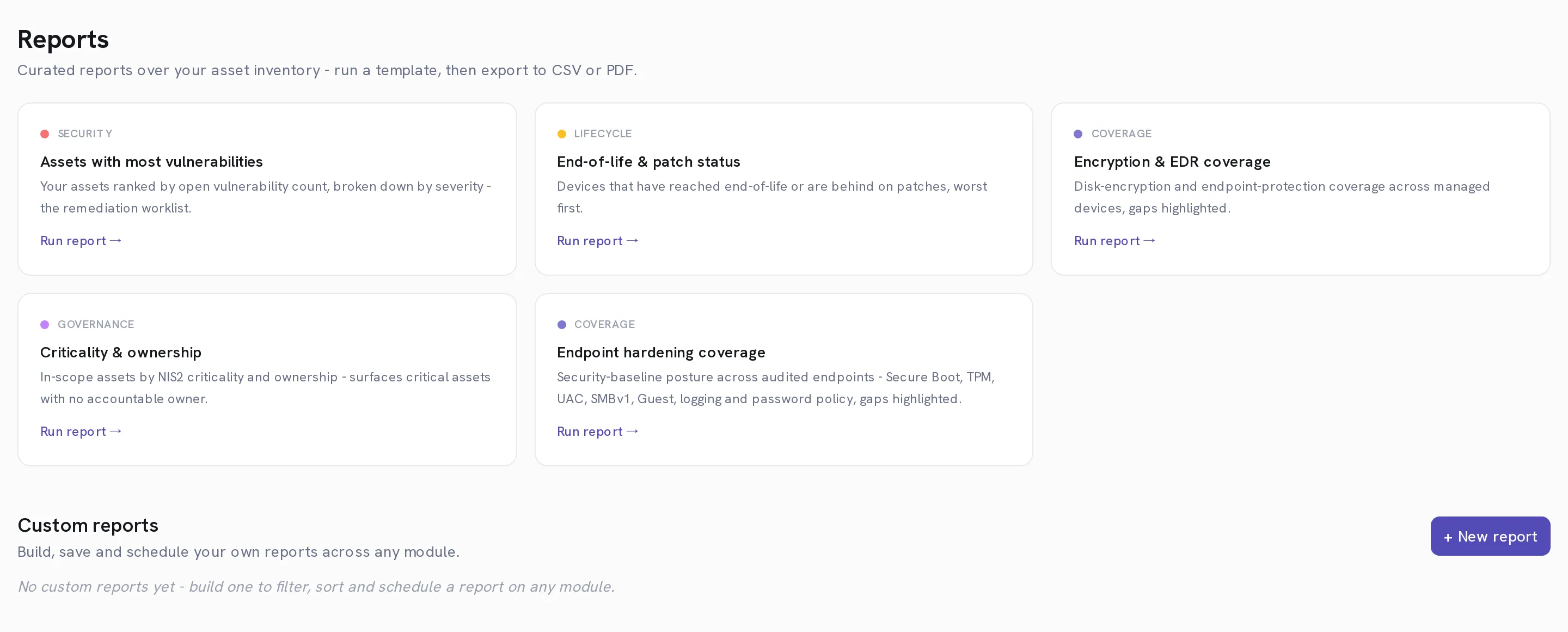
Select Run report on a curated card
Assets with most vulnerabilities is the remediation worklist. End-of-life & patch status is what has run out of support. Encryption & EDR coverage is the gap list. Criticality & ownership finds critical assets with nobody accountable for them, usually the most uncomfortable of the set. Endpoint hardening coverage reports the security baseline across audited endpoints.
Read the summary figures, then the table
The figures across the top cover every matching asset. The table below is capped at the top 500 rows and says so when it is. The summary is still whole-tenant, so the numbers do not quietly disagree with each other.
Export it with Export CSV or Export PDF
CSV is built in your browser for onward analysis. PDF is rendered on the server with your branding, and respects the column sort you set in the table.
Select + New report for anything the gallery does not cover
The builder covers seven domains: Vulnerabilities, CMDB assets, ICT suppliers (vendors), Risks, Non-conformances, Service requests and KPIs. Each gets its own conditions, sorting, columns, recipients and schedule.
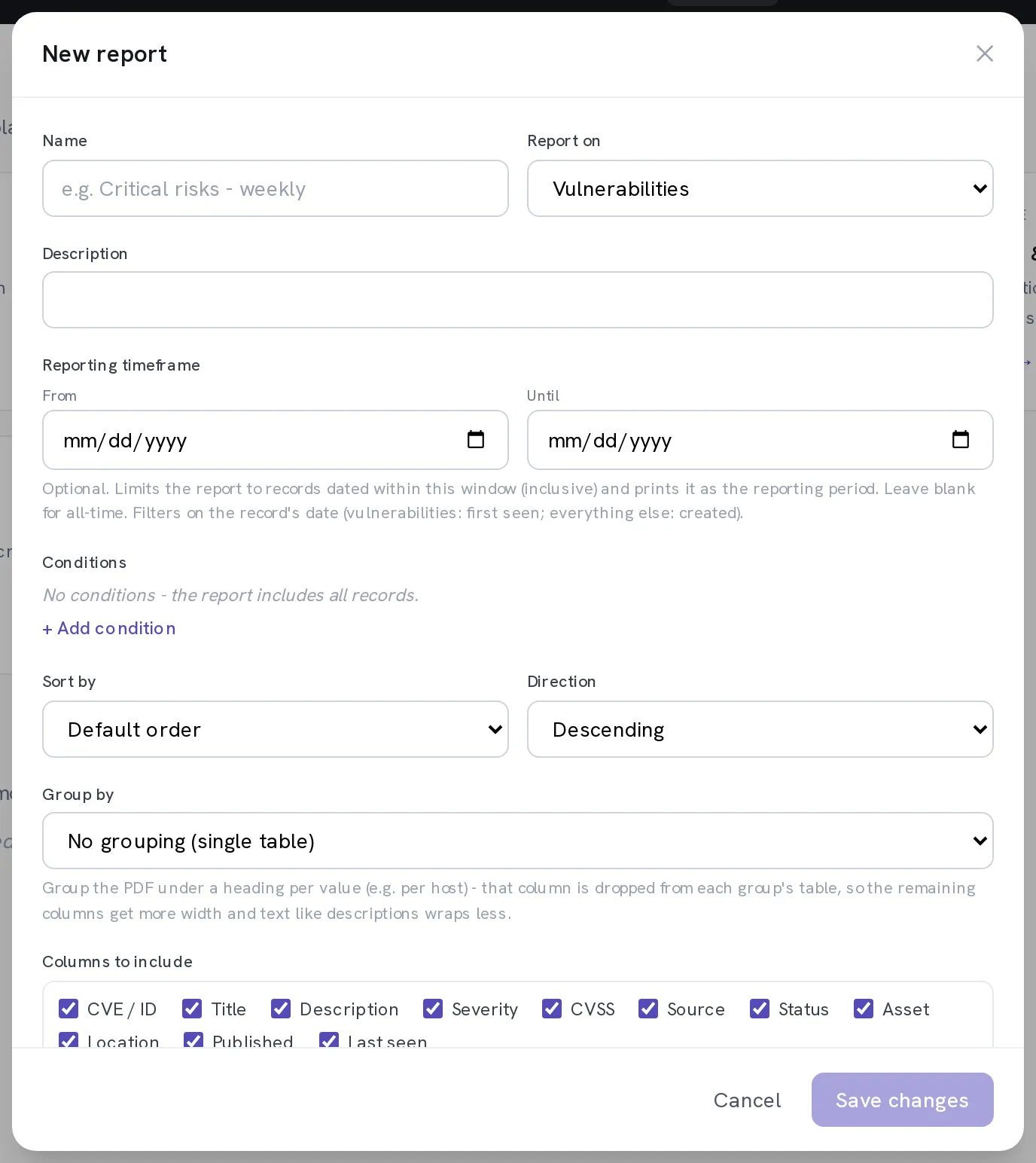
Name it and choose Report on
The domain decides everything below it, so changing it later clears the conditions, the sort and the columns. A domain you cannot read is shown but not selectable.
Optional. Set the Reporting timeframe
From and Until limit the report to records dated inside the window and print it as the reporting period, which is what makes a monthly report say which month it is. Leave it blank for all time. It filters on the record's own date: first seen for vulnerabilities, created for everything else.
Add Conditions
Each condition is a field, an operator and a value, combined with Match all or Match any. The operators include contains, is, is any of, is empty, in the last … days, this month and on or after, so "critical vulnerabilities first seen this month" is two conditions rather than a filtered export.
Choose Sort by, Group by and the Columns to include
Grouping prints a heading per value and drops that column from each group's table, which gives the remaining columns more width. That is the fix for a PDF where every description is truncated. Unticking columns does the same job from the other end.
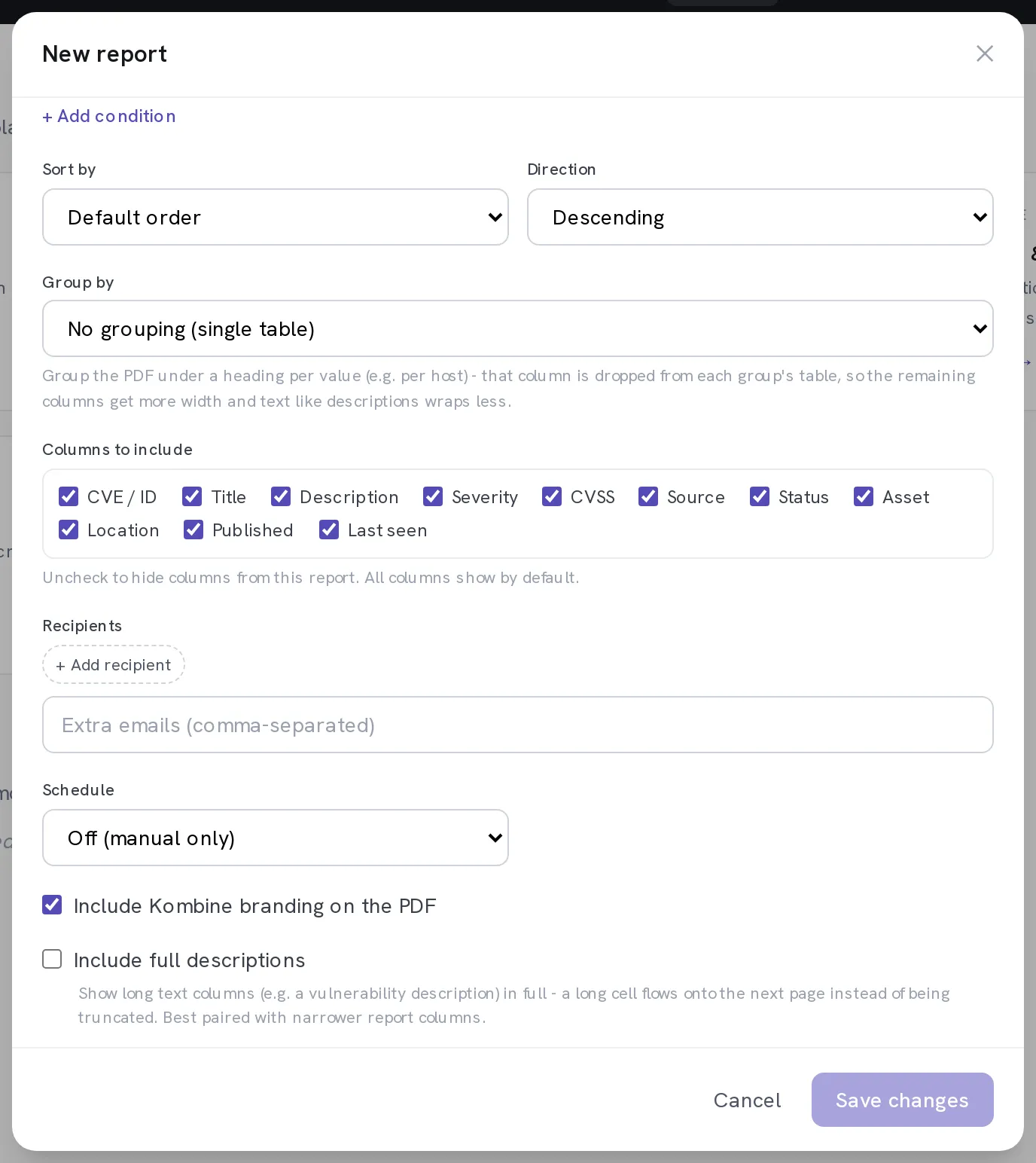
Add Recipients and set the Schedule
Recipients are users you search for, plus any Extra emails you type. The schedule is Off (manual only), Daily, Weekly, Bi-weekly, Monthly or Custom (every N days), each with a Time, and a weekday or day of month where it applies.
Save it, then Send now once
Sending once tells you the report is right and the addresses work, before a schedule starts delivering it every week. PDF gives you the same document without emailing anyone.
When it worked
The saved report appears in the list with its domain and its schedule, and Send now delivers the PDF to every recipient.
If it does not work
- The curated gallery is missing entirely.
- Those reports roll up the whole inventory, so they need full CMDB read. The section is skipped rather than shown broken, and the custom builder still works for the domains you can reach.
- A domain in Report on is greyed out.
- You do not have read access to that module. An administrator can grant it under Settings → Users.
- The PDF truncates long descriptions.
- Tick Include full descriptions, and pair it with Group by or fewer columns so there is width for the text to flow into.
- The scheduled report never arrived.
- Check the schedule is not Off (manual only) and that there is at least one recipient. Send now proves both in one go.
A report with a timeframe is a record of a period. A report without one is a snapshot that cannot be compared with the one before it, which is the difference between a trend and a number.