Instructions
Raise and resolve a request
This guide shows you how to raise a request, incident or change, and how to resolve one so the record stands up afterwards.
Before you start
- You need Write on the Service requests module to raise one, and Manager, CISO or Administrator to change somebody else's status or assignee. The two register exports need read access to incidents.
- SLA targets should be set first, under Settings → Service desk. Without them a ticket has no clock and no breach badge.
- Know which of the four types you are opening. The type decides the SLA, the extra fields, and whether the ticket can become a regulatory filing.
Open Requests
All, My Tickets, Unassigned and SLA Breached are tabs across the top; Security, Major, Problems and Personal data are chips in the filter bar under them. You will not necessarily see all eight: All and Unassigned are for managers, CISOs and administrators, and Major and Problems appear only where ITIL is switched on under Settings → Service desk. The two links underneath produce the GDPR breach register and the NIS2 filings register as CSV. Tickets of type Periodic Check appear here too, opened by the compliance calendar rather than by a person.
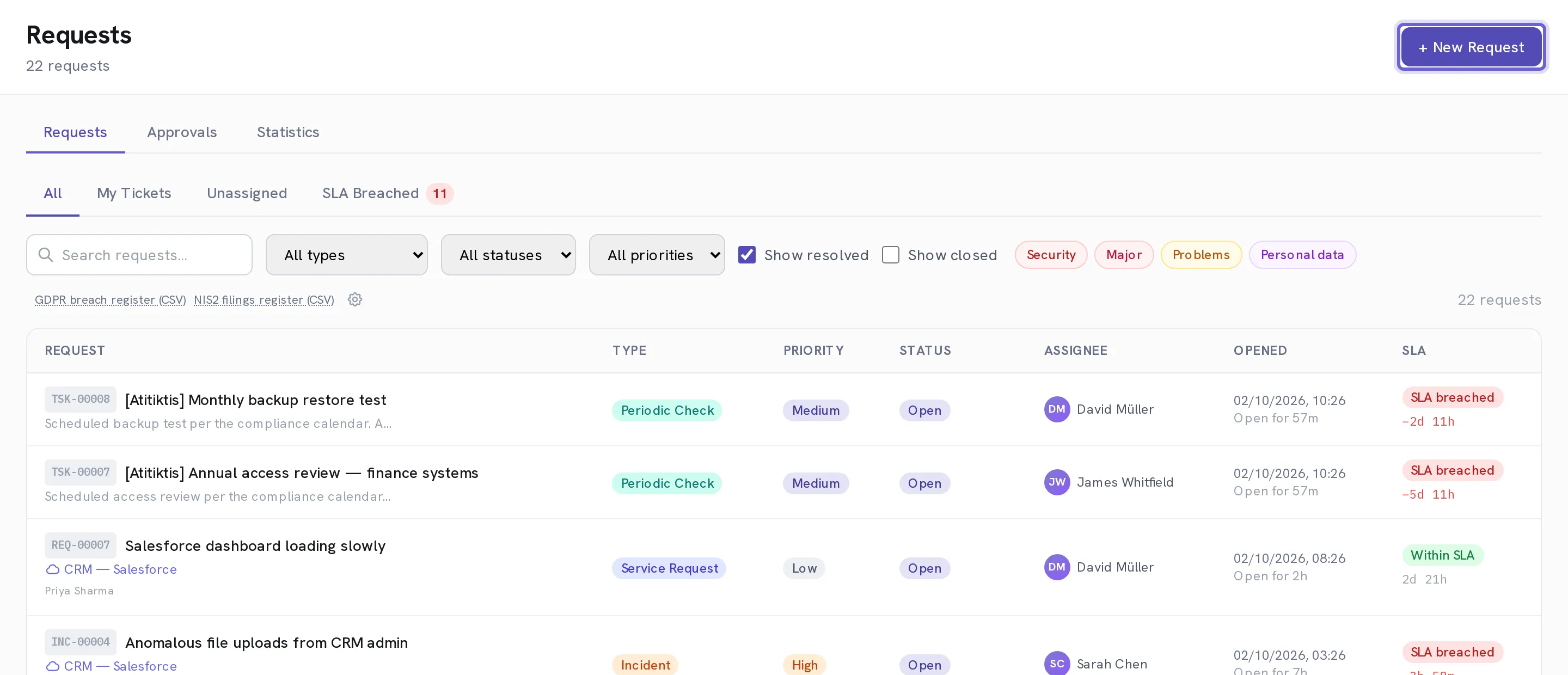
Select + New Request
A modal opens. Open in new tab at the top right gives you the same form as a full page if you are going to be a while.
Choose the Type
Service Request is routine work: a laptop, an install, an account. Incident is something unplanned and broken, including a suspected breach. Change is planned work that goes through approval. Problem is the root cause behind repeat tickets. Each card carries its own examples, and each type has its own SLA target.
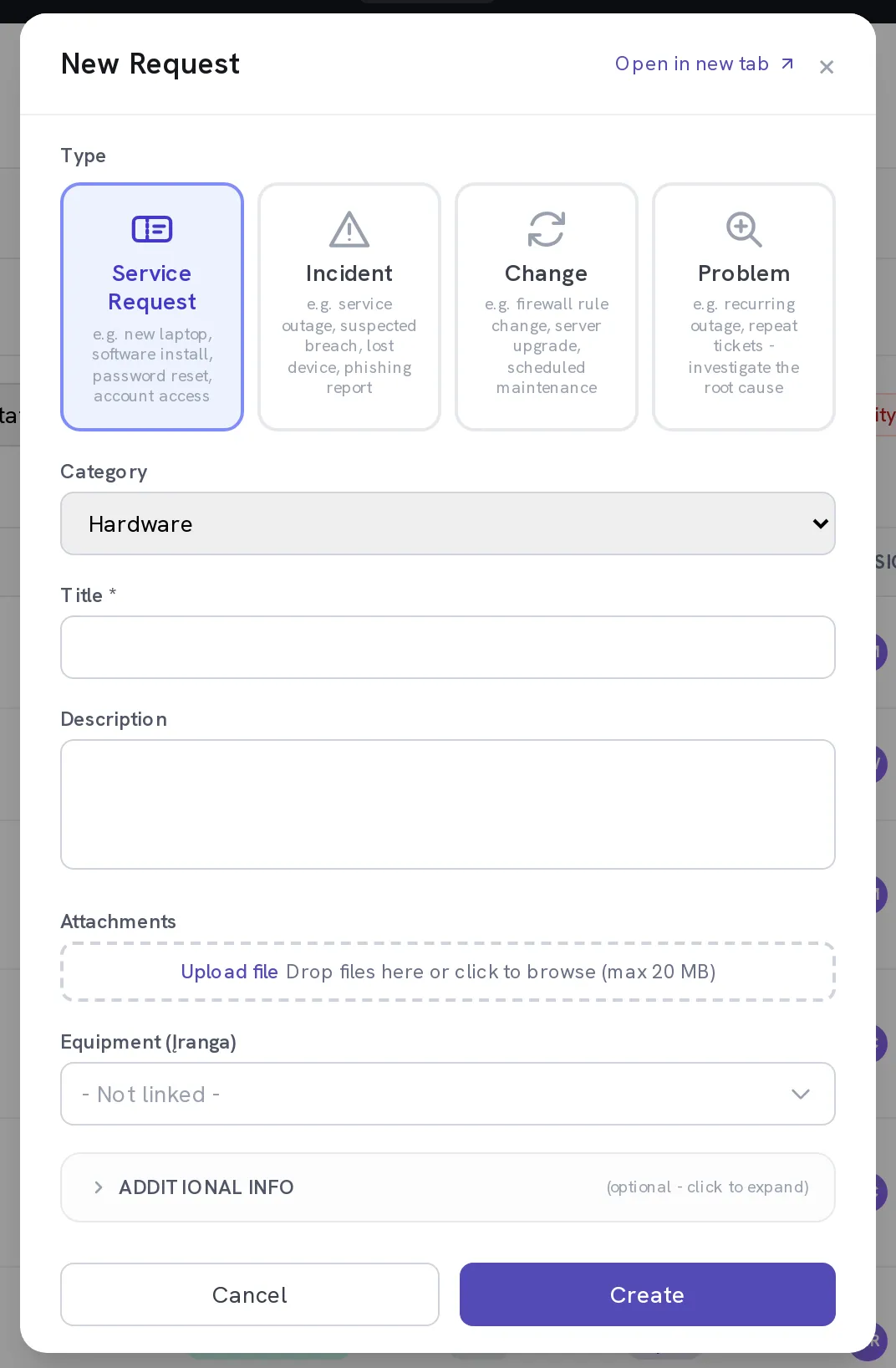
Pick a Category and write a Title
The category list is yours to shape under Settings → Service desk. The title is what everybody sees in the queue, so put the symptom in it.
Optional. Fill in Change details if you chose Change
A change asks for a Change type, an Impact assessment and a Rollback plan before it can be approved. These are the three questions a change board asks, and the form asks them so the board does not have to.
Link the Equipment
Searching here reaches the CMDB. Linking the asset is what lets you answer "how many tickets has this machine generated" later, and it is what connects an incident to the risks and controls that asset carries.
Open Additional info and set Impact and Urgency
Both run from 1, the highest. Set the two and Kombine derives Priority from them, which is what makes a priority mean the same thing from one ticket to the next; leave them and whatever Priority the ticket already carries is submitted. A manager, CISO or administrator can also set it by hand on the ticket afterwards. Assignee and a Knowledge-base URL sit here too.
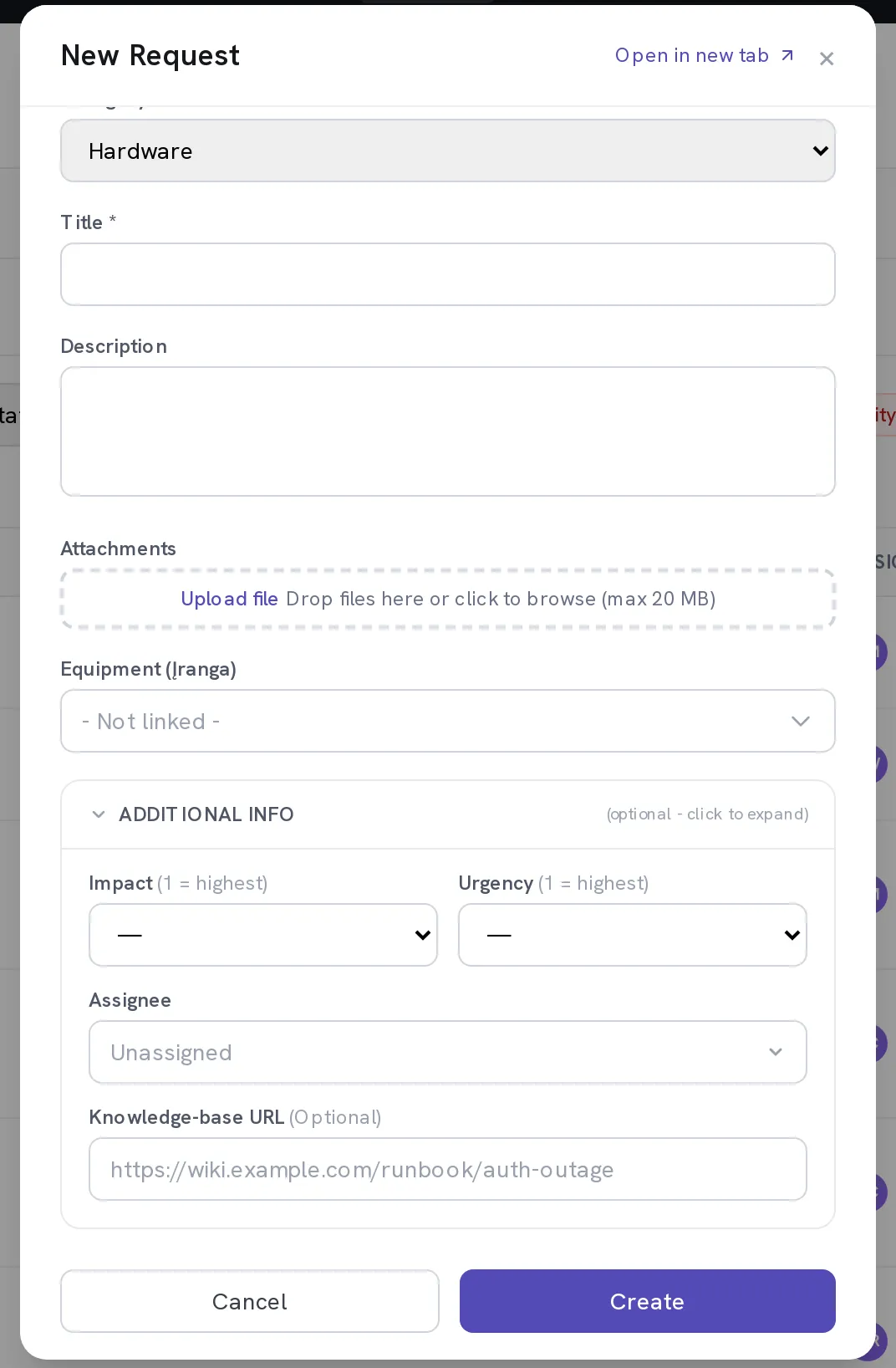
Select Create
The ticket gets an ID and lands in the queue. If the type has an SLA target, the clock starts now.
Work it from the detail panel
Select the row. Status moves through Open, In Progress and Pending Info; People adds anyone else who needs to follow it; comments are the conversation and stay on the record. Pending Info is the state that pauses the SLA clock, so use it when you are genuinely waiting on the requester.
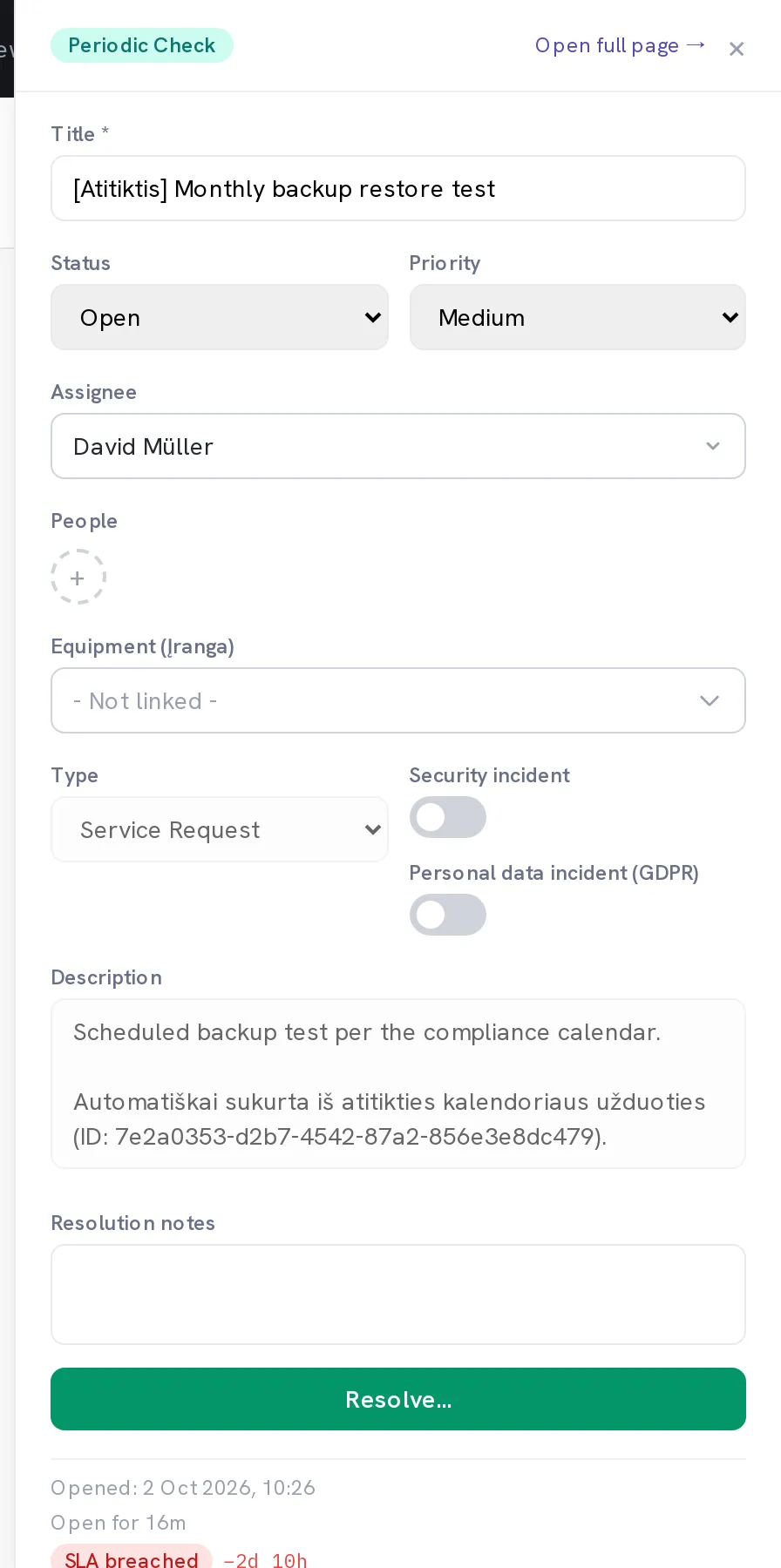
Optional. Tick Security incident if that is what it turned out to be
This is the flag that pulls the ticket into the Security queue and into the NIS2 filings register, and it is what the NKSC reporting flow reads. Set it the moment you suspect it rather than at the end.
Close it with Resolve…
A resolution needs two things. Resolution type is one of Solved, Workaround, Duplicate, Cannot reproduce or Rejected, and Resolution notes records what you did. Both are required, both go into the ticket history, and Notify the requester by email tells the person who raised it. If you got the wording wrong, Amend resolution corrects it without reopening the ticket.
When it worked
The ticket shows Resolved with its resolution type and notes, the requester has been told, and it counts as within SLA or breached against the target for its type.
If it does not work
- A ticket shows no SLA badge at all.
- SLA tracking is off for that request type. Switch it on under Settings → Service desk → SLA Configuration; the hours stay configured even while tracking is off.
- The SLA clock is running overnight and at weekends.
- Turn on Restrict SLA to business hours in the same place and set your working calendar, timezone and holidays. The timer then counts only working time and pauses while the ticket is Pending Info.
- You cannot change the status or assignee.
- Only managers, CISOs and administrators can. Ask one of them, or add a comment. Comments are open to everyone on the ticket.
- A ticket resolved itself.
- Auto-close is on for tickets stuck in Pending Info. It sets them to Resolved rather than Closed, so the requester can still reopen one by replying. A warning email goes out three working days before, and the number of days is set under Settings → Service desk.
**Pending Info** is not a parking space. It pauses the SLA clock and starts the auto-close countdown, so a ticket left there quietly resolves itself.